Virtual Staging AI for Listing Photos
Use this browser-based home staging application to furnish an empty listing photo. Upload the room, choose a style and compare the result with your original; AI can alter details.
- Start from one photo
- Pick a style or describe it
- 1 free design
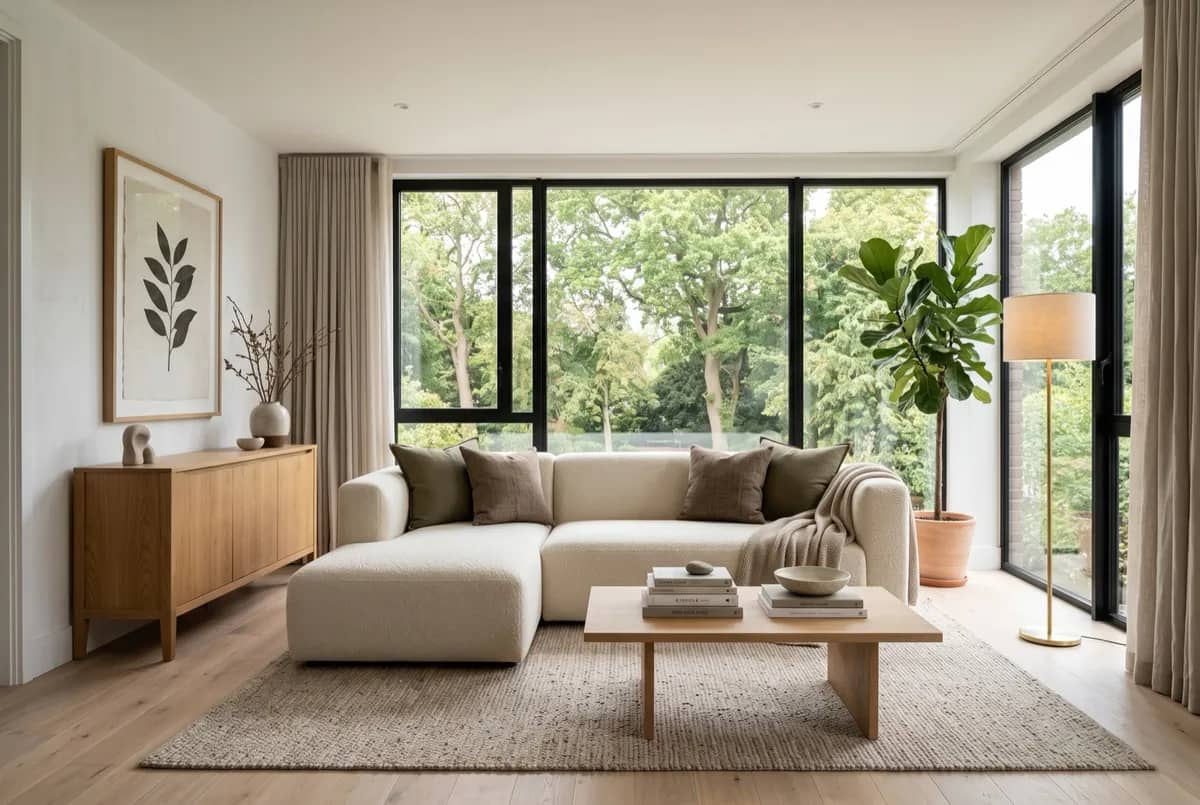
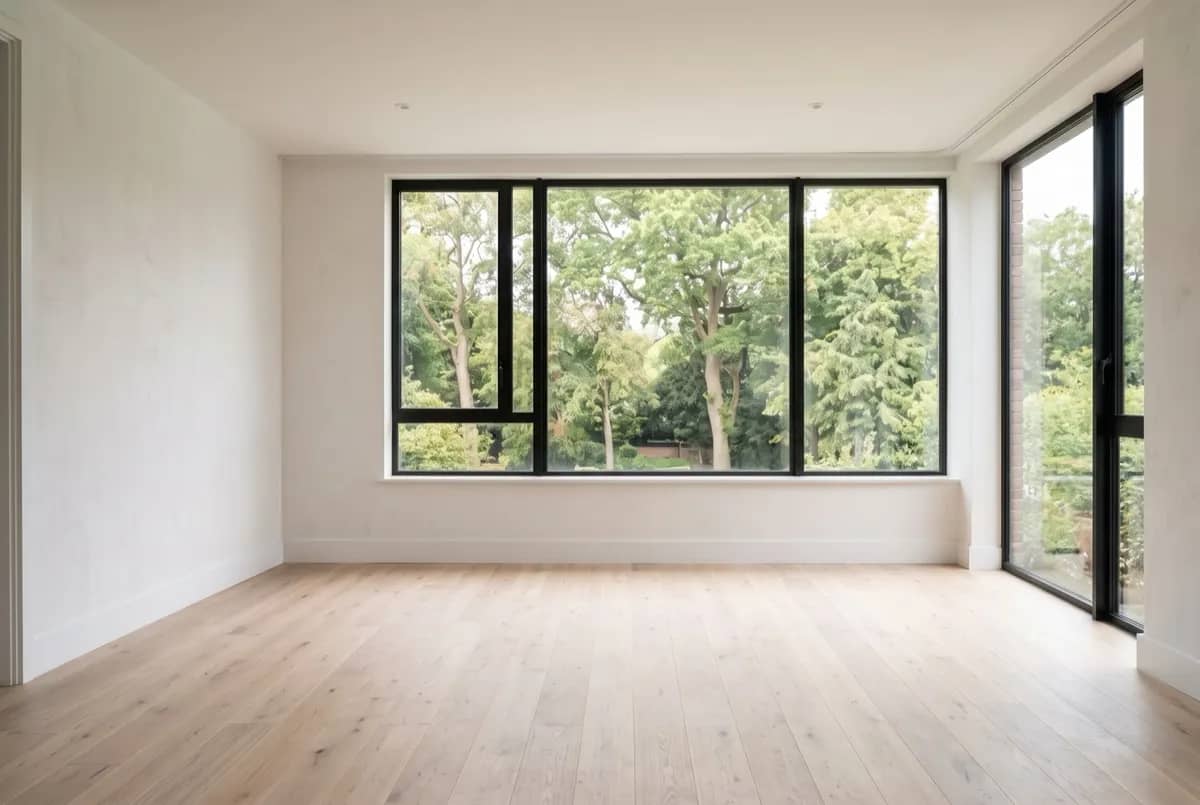
Example output. Your result depends on your photo.
Why agents use virtual staging AI
Stage the photos you already have
Virtual staging for real estate listings starts with a vacant-room photo you already have, so you can furnish the gallery without arranging furniture delivery or a new photo shoot.
Try Virtual Staging AI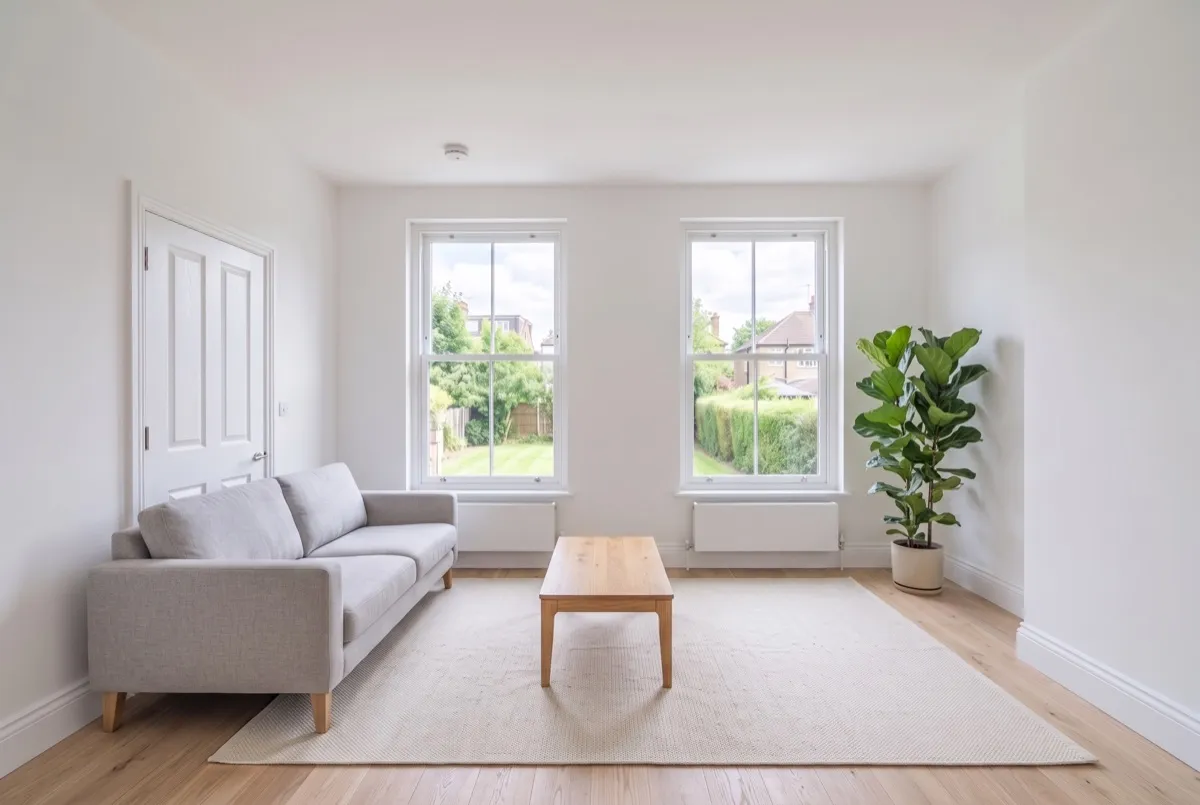
Check every photo against the original
Buyers will visit in person, so compare the virtual staging before and after views and reject any result that adds or moves windows, doorways or fixtures.
Preview Your Listing Virtually Staged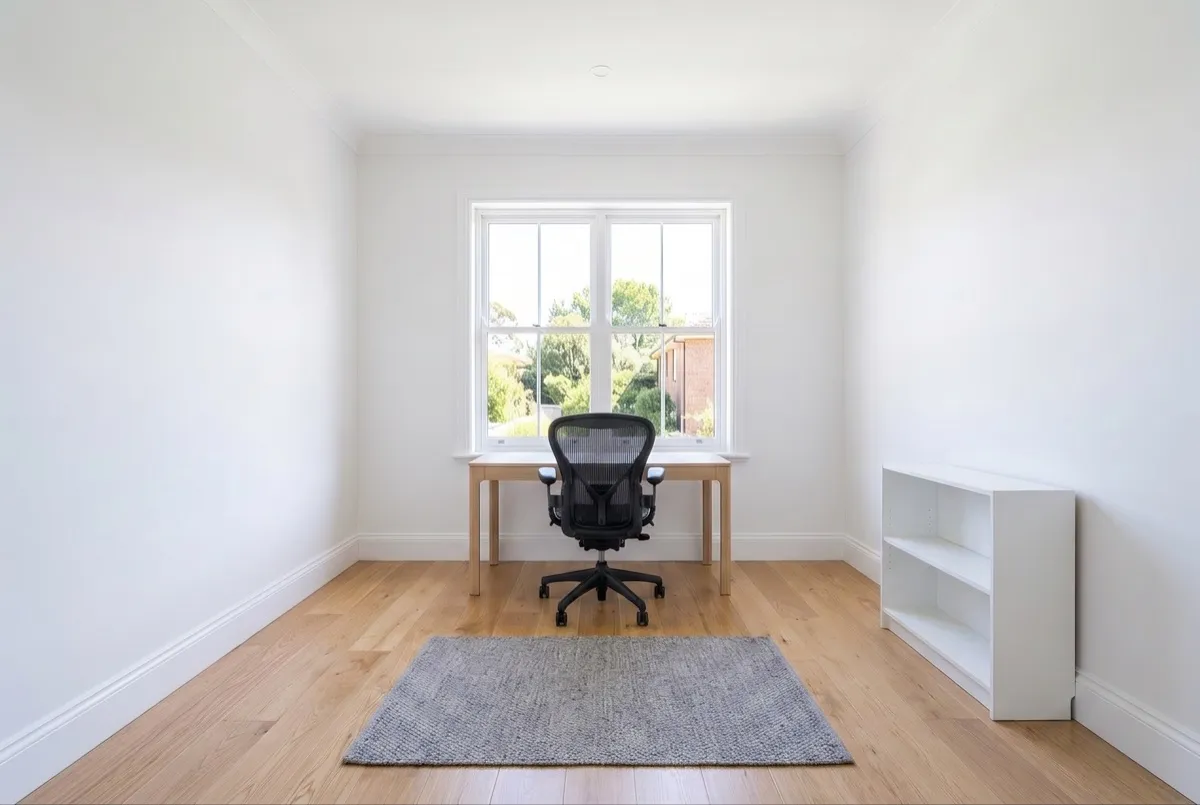
Compare furnishing directions
Try a different furniture direction from the same empty-room photo. Each generation uses 10 credits; extra attempts use credits on your account, and more credits come with a plan.
Start Virtual Staging Your Listing PhotosHow to stage a listing photo with virtual staging
Upload the listing photo
The shot you would have published anyway — straight on, in daylight, showing two walls where possible. Up to 12 MB.
Choose how it is furnished
Room type plus a style that matches the property and the neighbourhood. Add a note such as "neutral, family buyer"; the AI may not follow every detail.
Generate, compare and download
Inspect the furnished image against your original, download it and add the disclosure required by your listing platform.
FAQs about our Virtual Staging AI
Is AI virtual staging allowed on MLS listings?
Check your listing platform’s rules. NAR Article 12 and Standard of Practice 12-10 address truthful advertising and misleading imagery; they do not prescribe one national image label. Local MLSs can require labels, originals or limits on alterations. A Spaceora watermark is not an MLS disclosure; add the disclosure your platform requires.
How much does it cost?
Stage one listing photo for free before signing up. Your preview includes a watermark and uses the shared trial allowance. Choose a paid plan for the clean original; further staging uses credits on your account.
Can I use this home staging application in my browser?
No account or payment is needed for your first watermarked staging preview. After the shared free trial, select a paid plan to download the clean image, or keep designing with credits on your account.
What photo should I upload for virtual staging?
Start with a clear photo of an empty room, showing the floor, walls and windows. Choose a style to explore a furnished look for the space.
What should I check when comparing virtual staging platforms?
Check the accepted photo types, editing access, credit cost, watermark and downloaded file. Spaceora furnishes empty-room photos; it does not clear existing furniture or provide a measured floor plan. Review fixed features and your listing platform’s rules before publishing.
Is there a free tier?
The first virtual staging preview is free and watermarked. This is one trial across all tools. Removing the watermark needs a paid plan. More images use credits on your account, 10 credits each; more credits come with a plan.
Staging several photos of the same room? Multi-angle staging applies one shared style across the angles. Comparing costs first? See the best free AI virtual staging tools.
More tools for listing photos
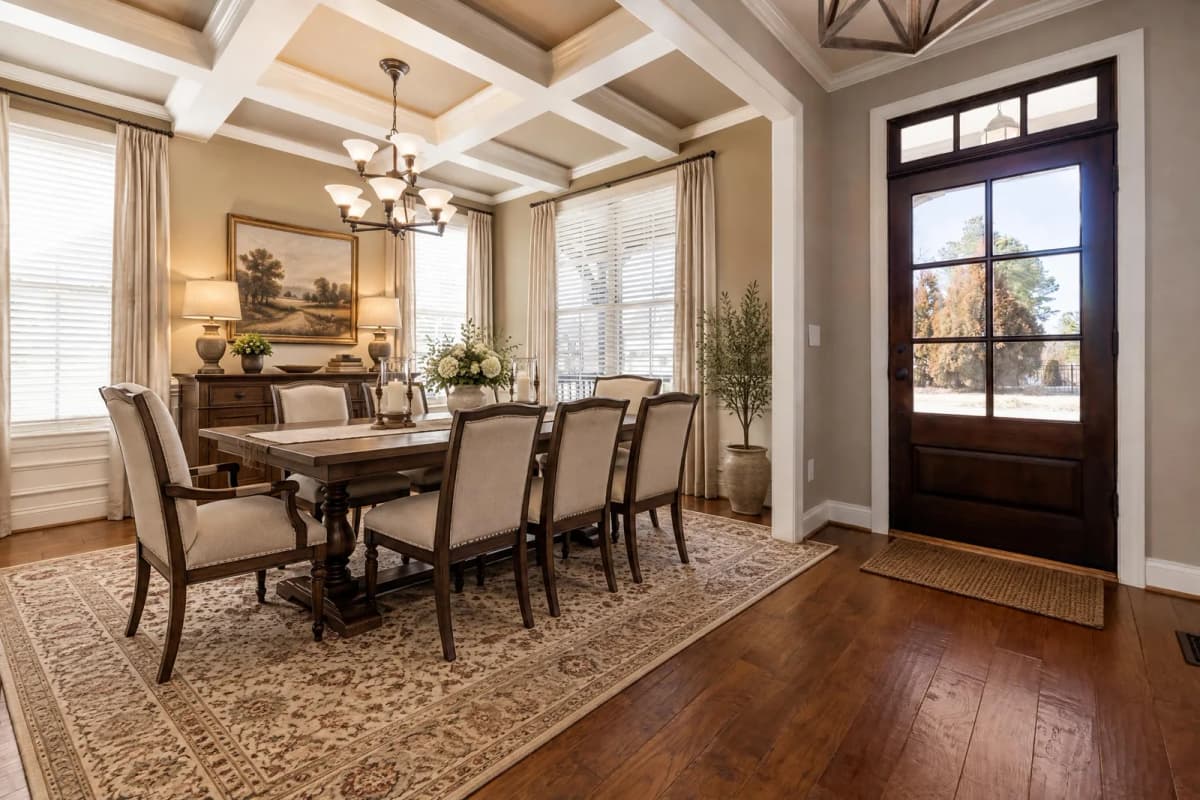
Dining Room Virtual Staging
Furnish an empty dining room photo with a table and chairs.
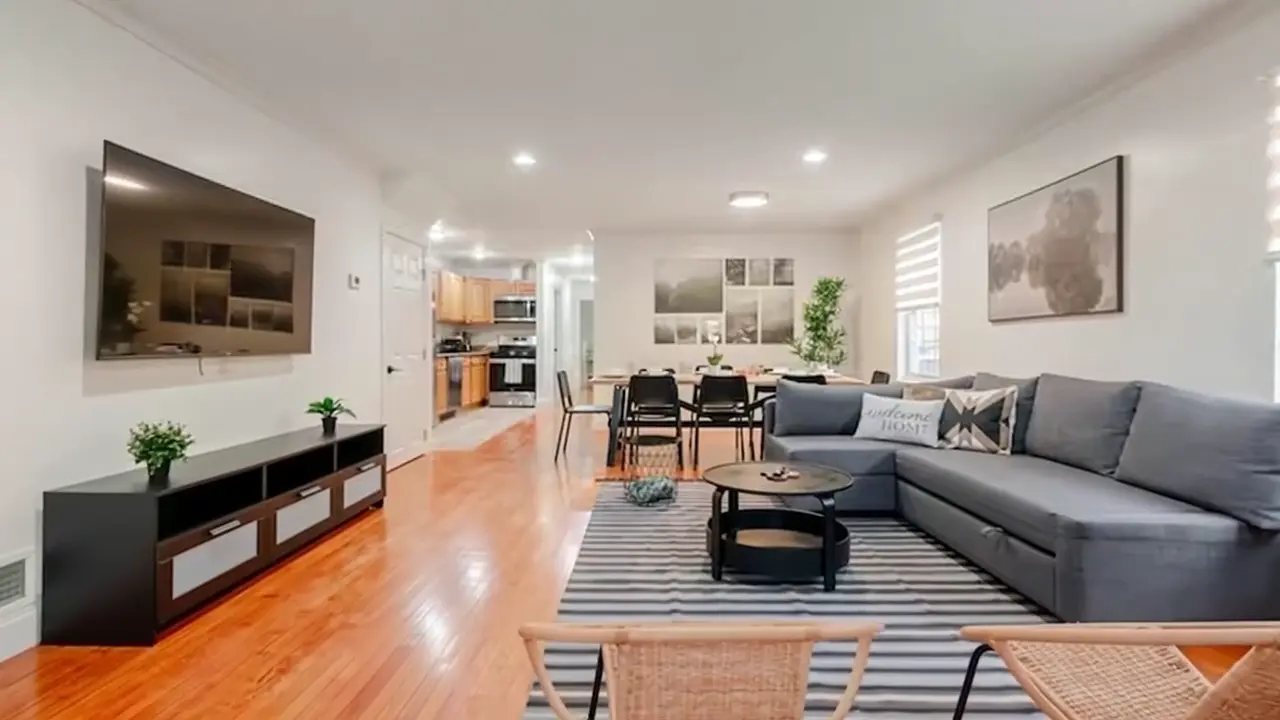
AI Real Estate Video
Turn property photos into an AI video with camera motion and music.
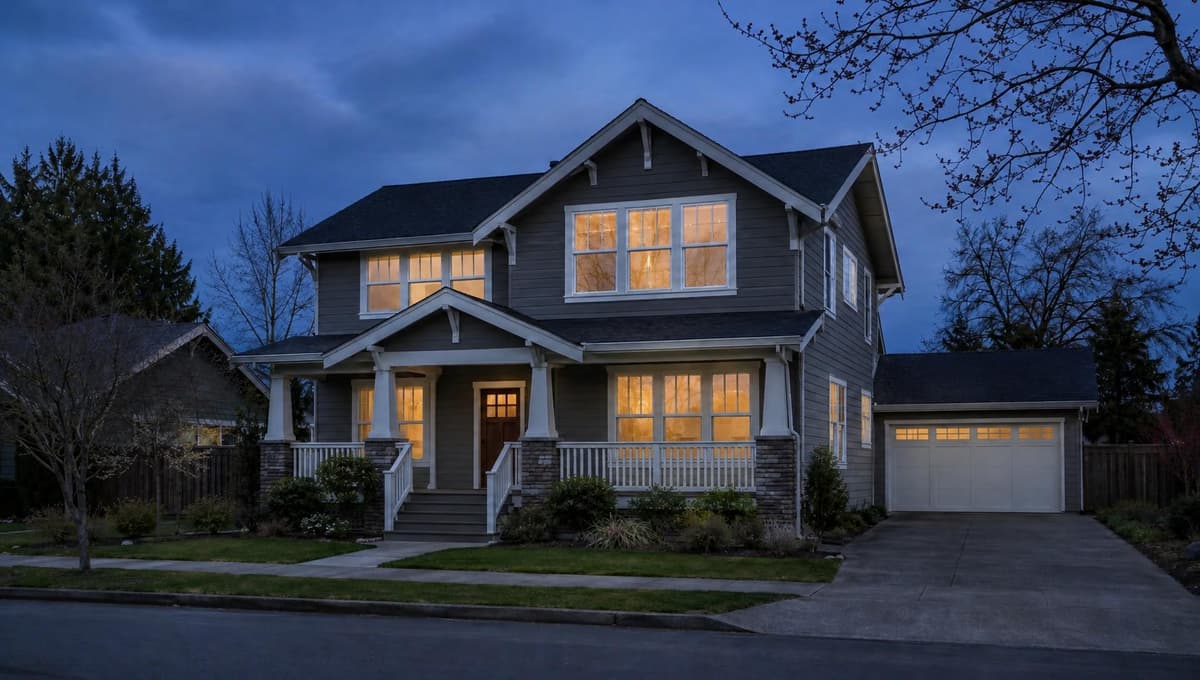
Virtual Twilight
Turn a daytime exterior photo into a twilight image.
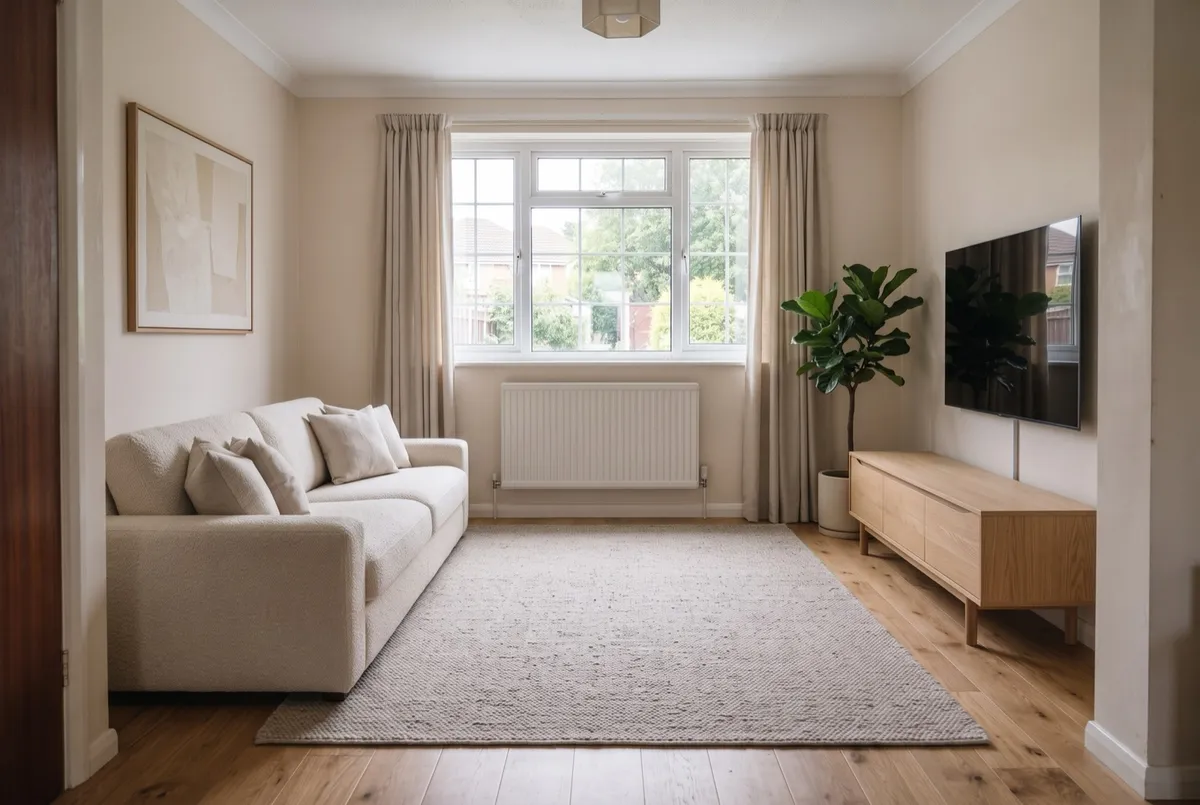
AI Room Design
Upload a photo, get it back redesigned
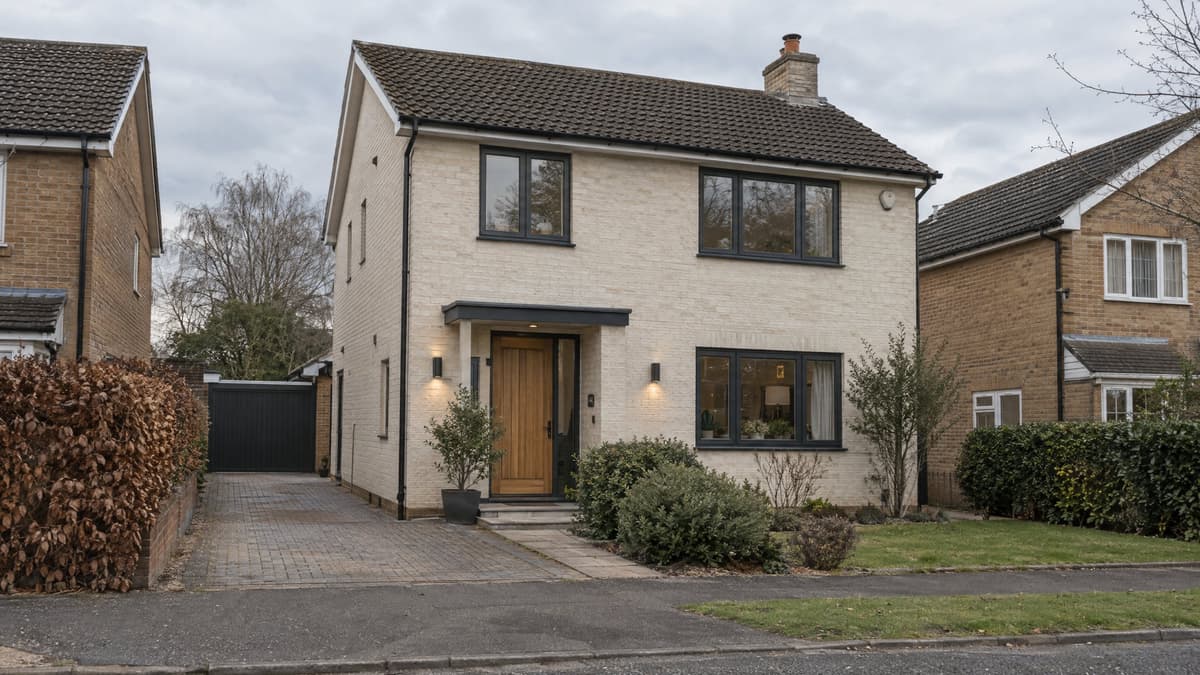
Exterior Renovator
Test a new facade direction from your photo
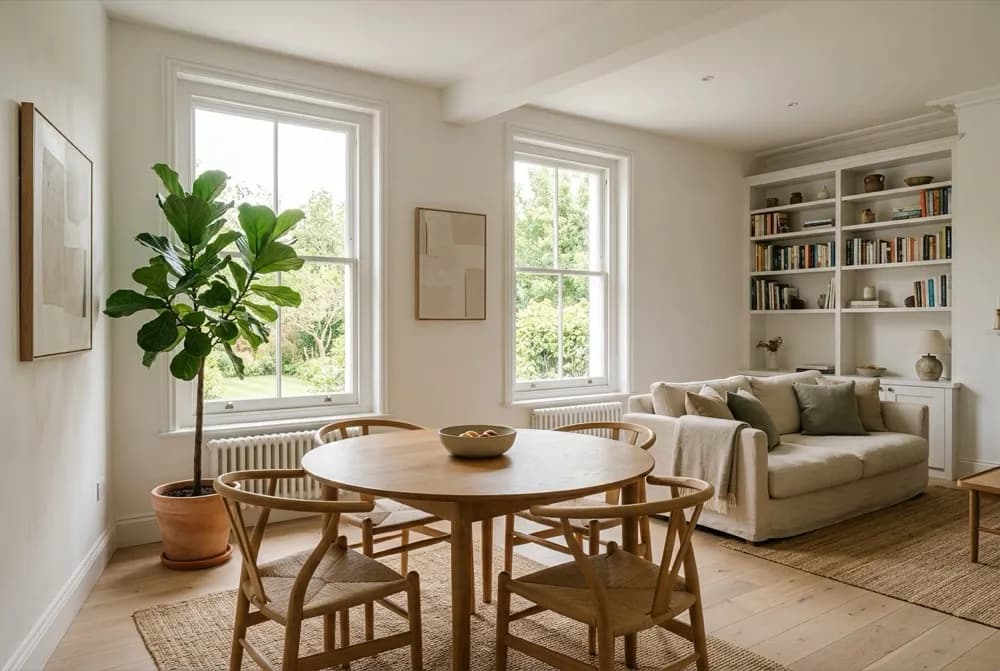
AI Interior Design
Explore a new look for your room with furniture, colors and finishes.
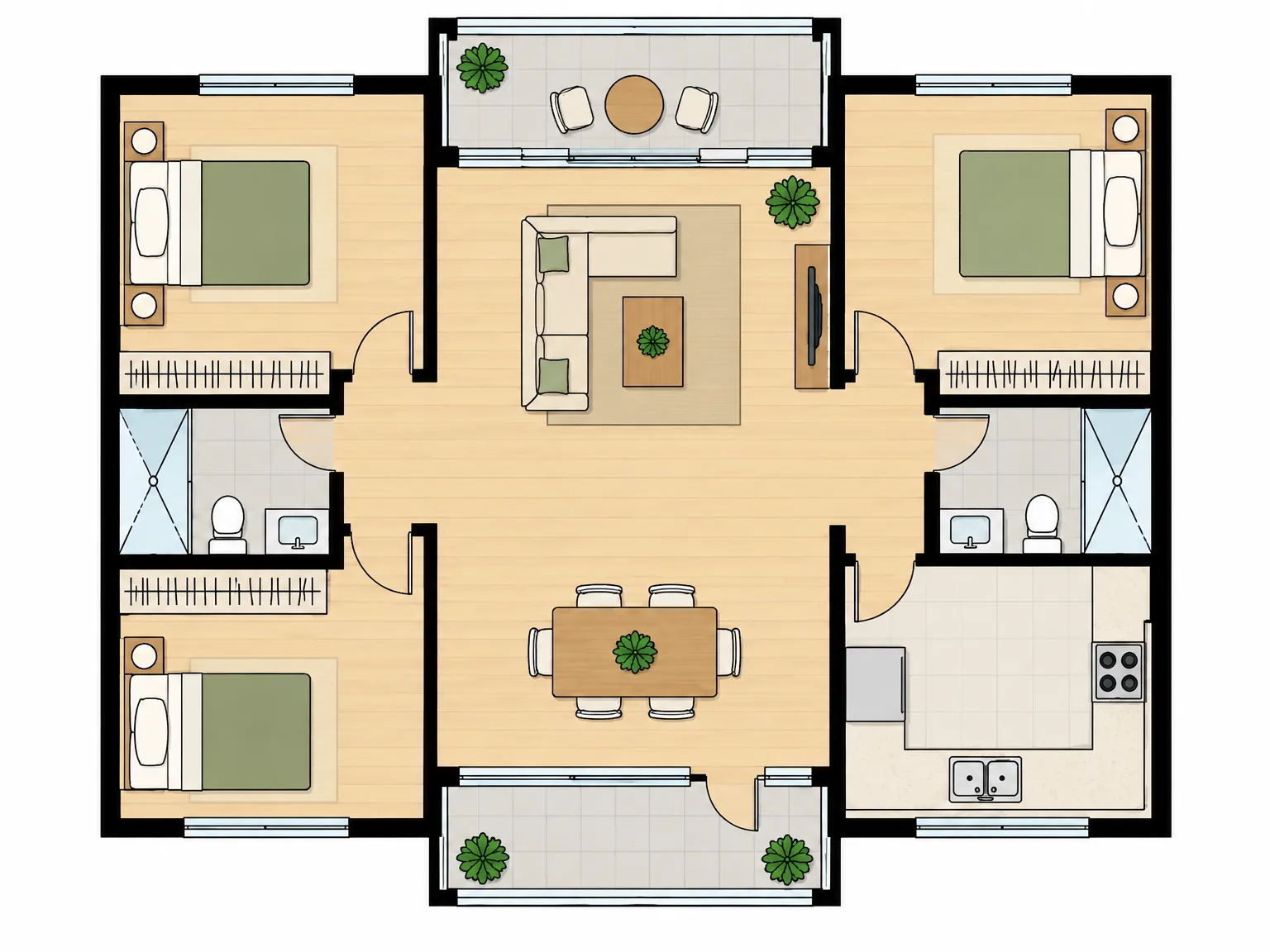
AI Floor Plan
A concept plan from the rooms you need
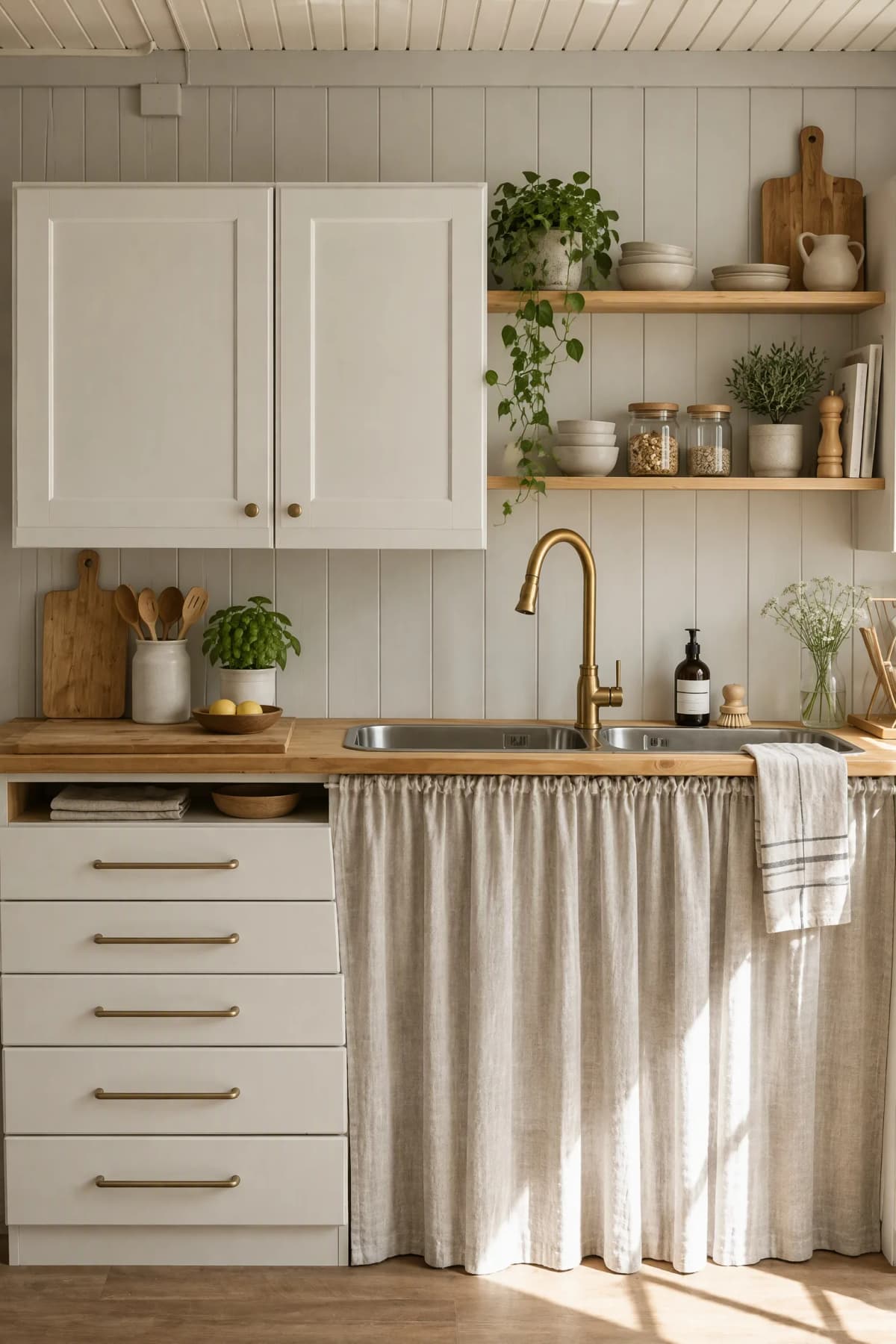
AI Kitchen Design
Explore kitchen styles from your photo.
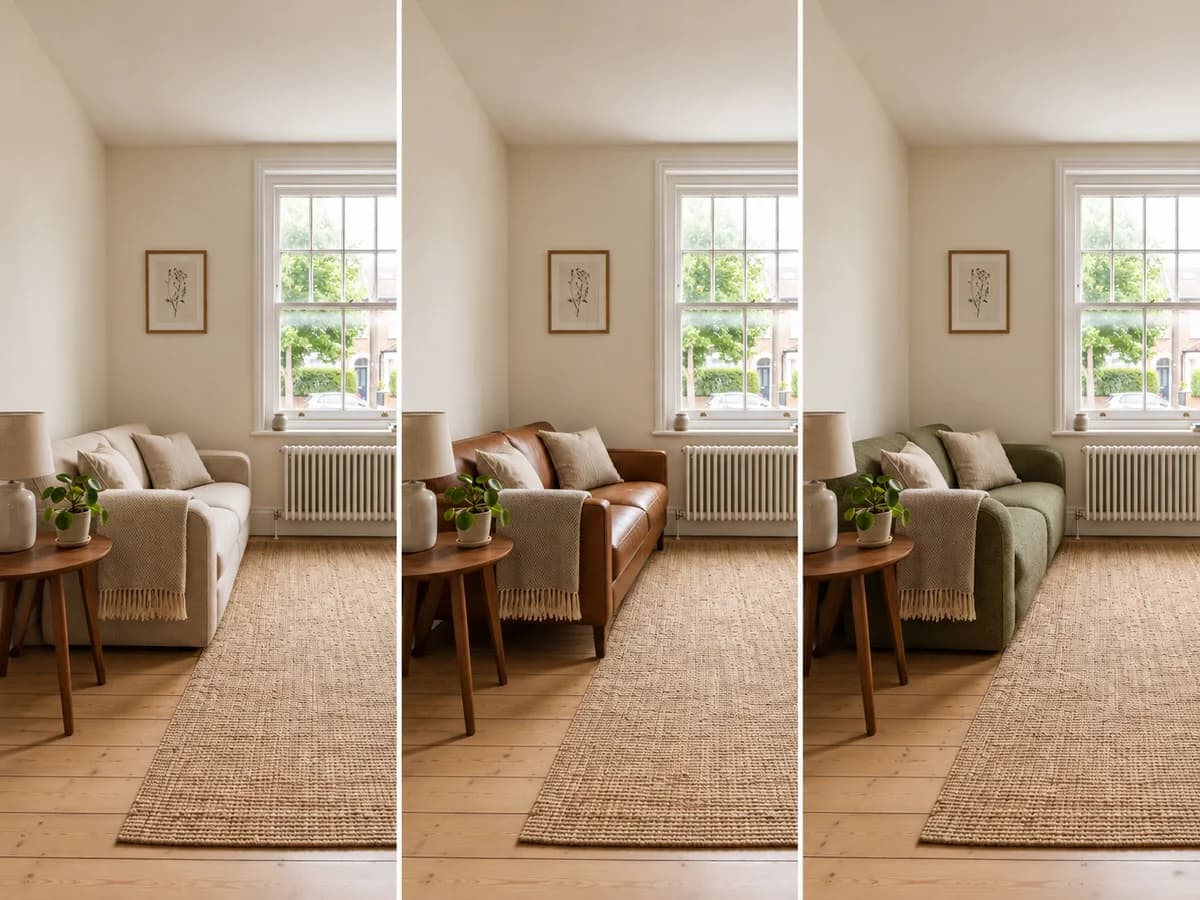
Replace Furniture
Explore a replacement for a selected piece in your room photo.
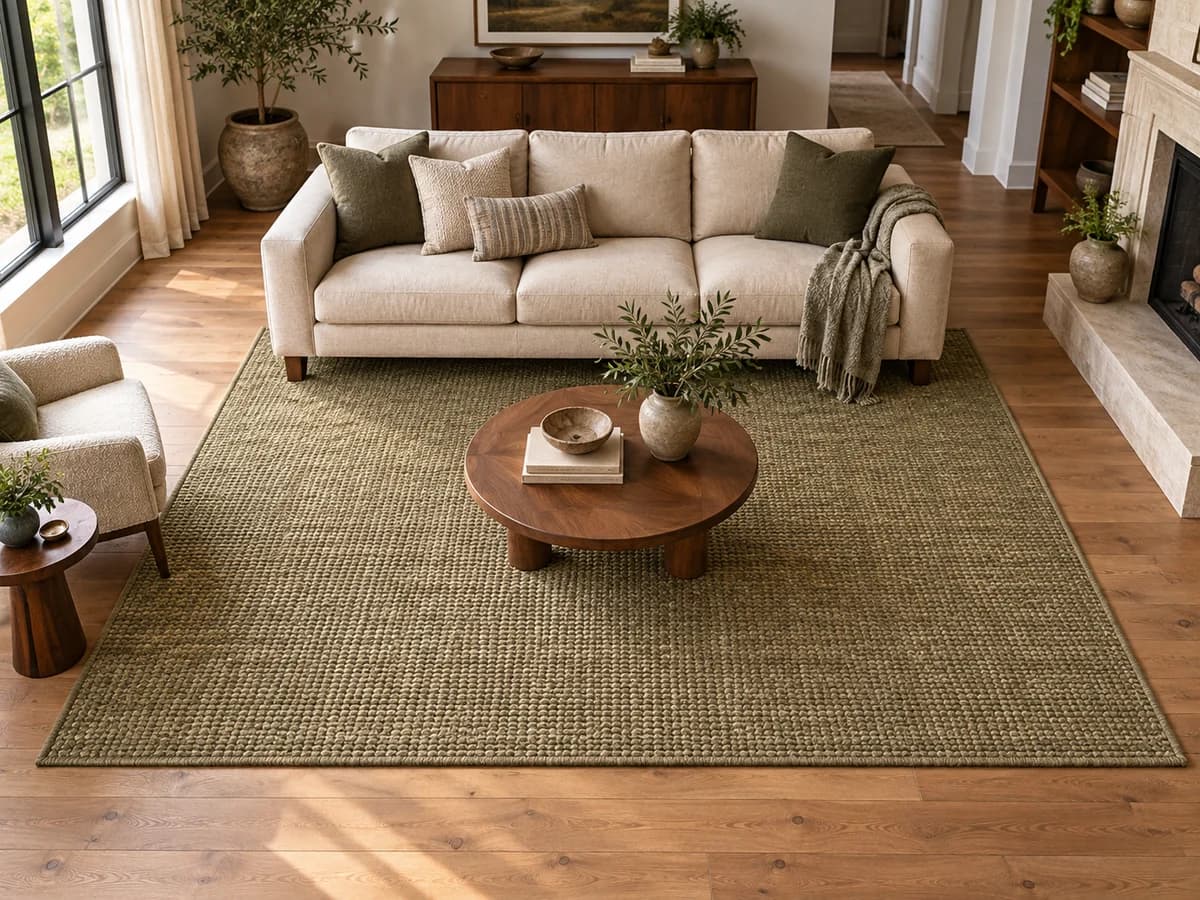
Rug Size Calculator
FREECompare rug sizes with your room and furniture measurements.
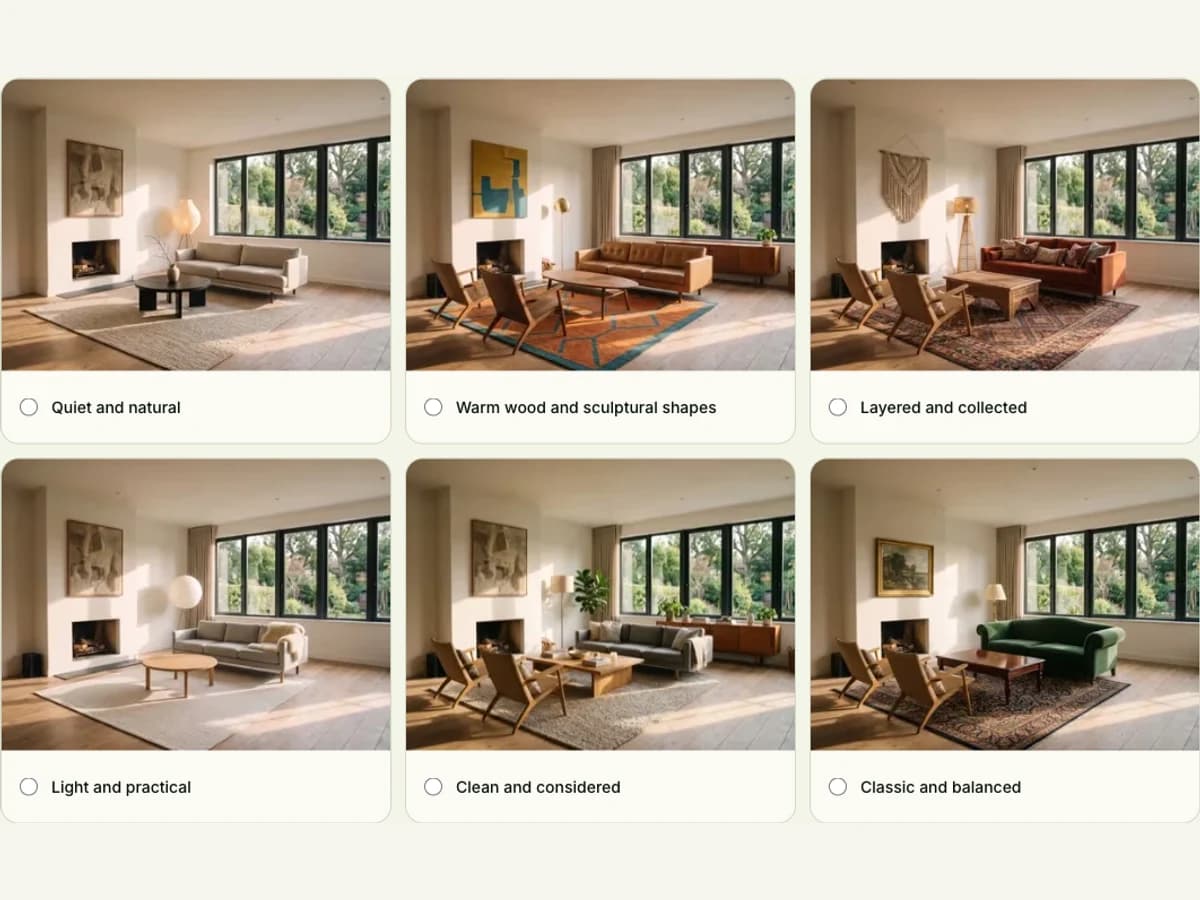
Interior Design Style Quiz
FREEFind your style mix from room, color and material preferences.
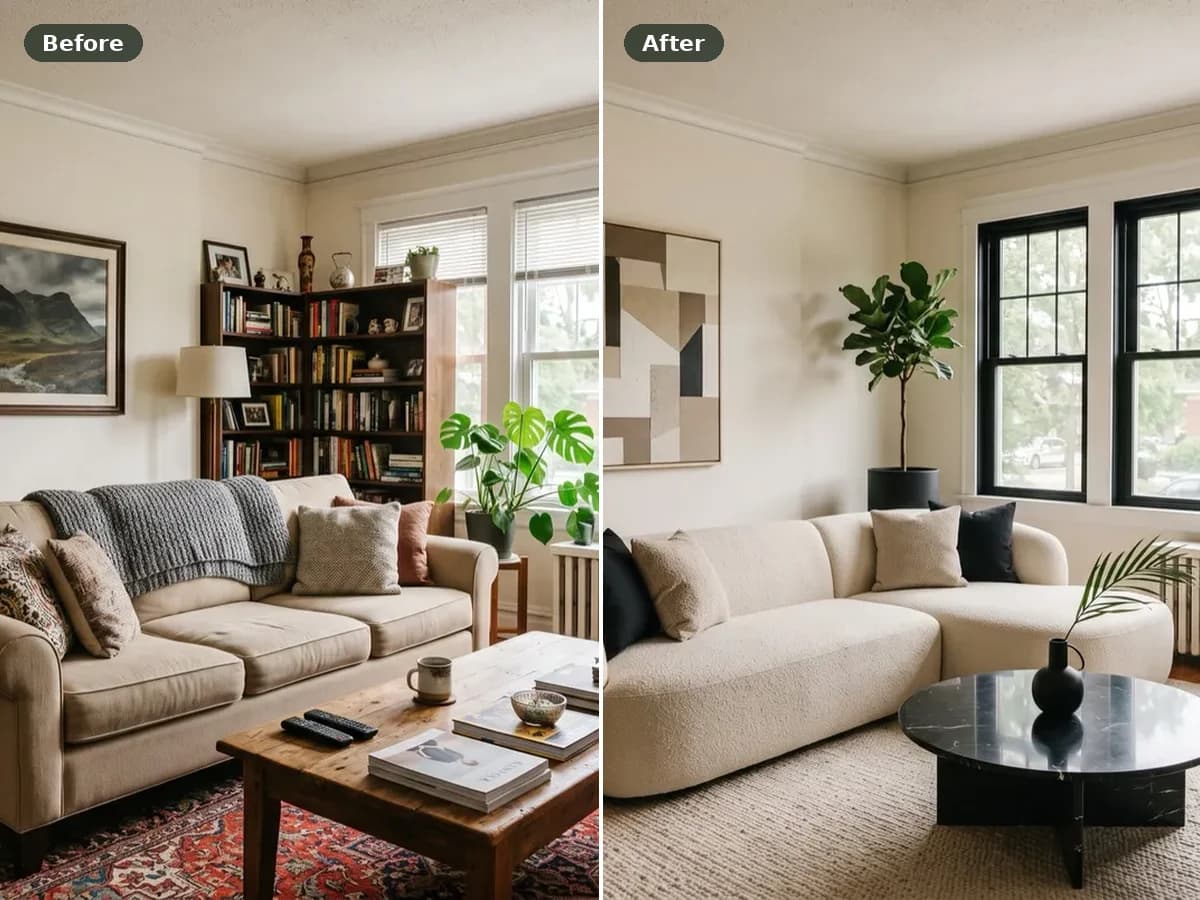
Before and After Photo Maker
FREECombine two photos into a labeled comparison and download it.
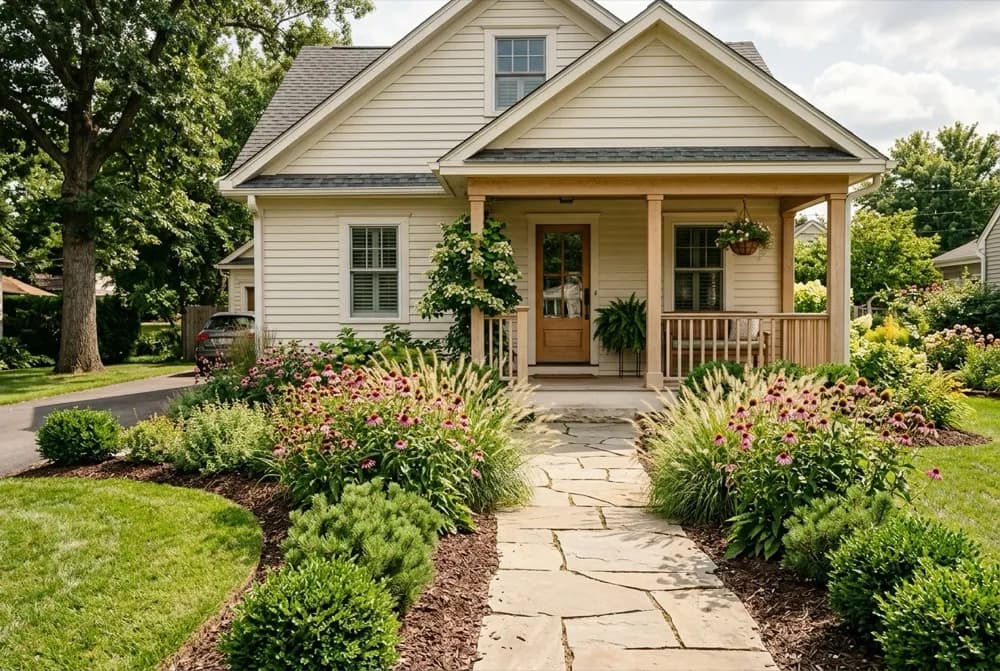
AI Landscape Design
Explore a new direction for your outdoor space.
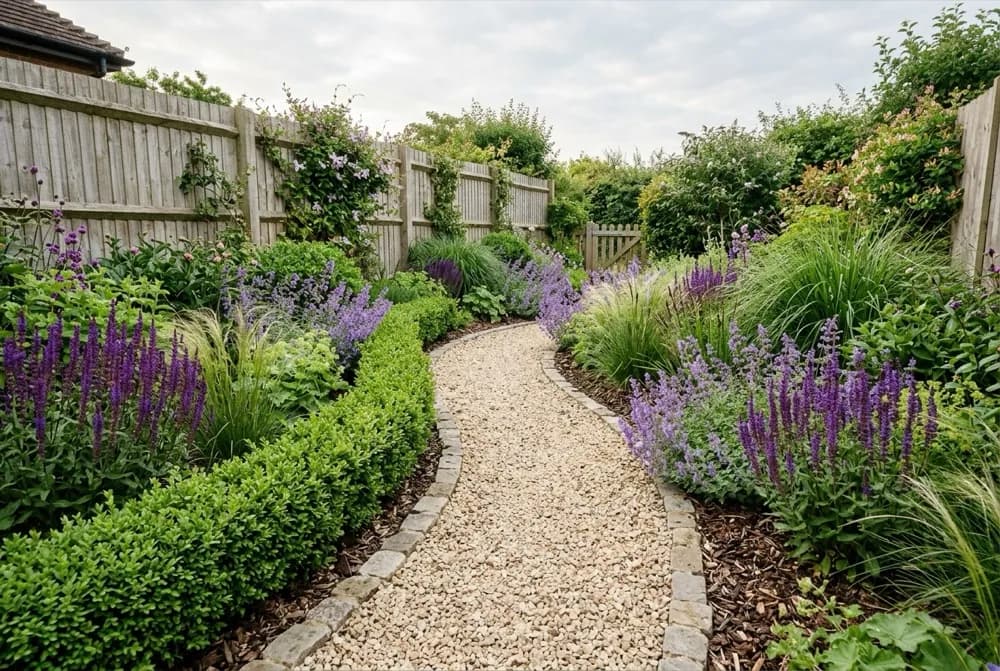
AI Garden Design
Explore planting designs based on your photo and growing conditions.
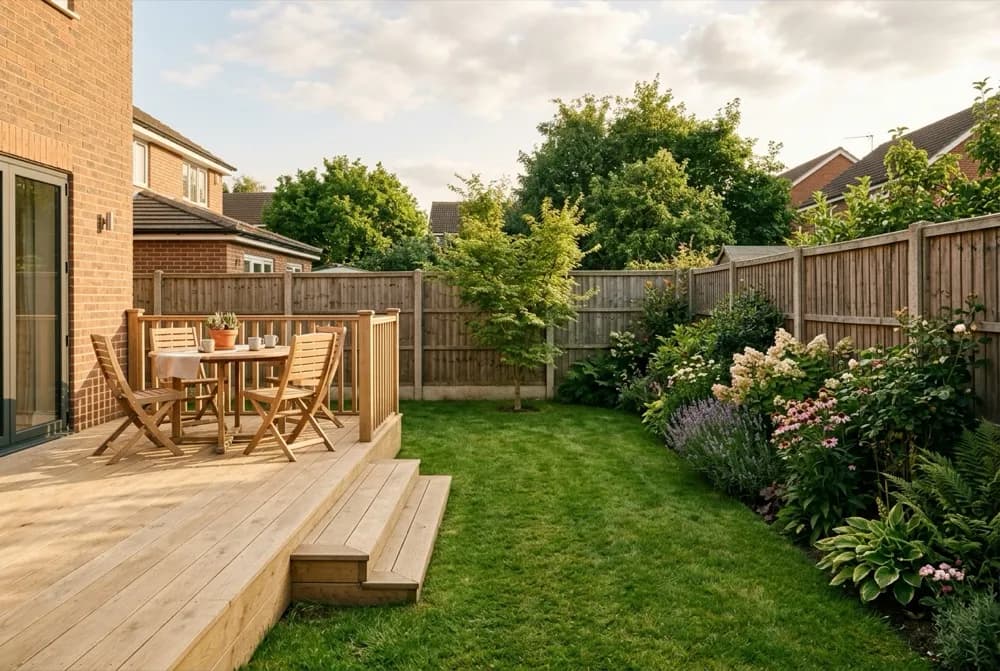
AI Backyard Design
Compare ideas for the backyard you already have.

Hardiness Zone Finder
FREECheck your supported local hardiness zone before choosing plants.
Further reading
- Best free AI virtual staging tools
A hands-on comparison of the free virtual staging tools worth trying, and where each one falls short.