AI Interior Design
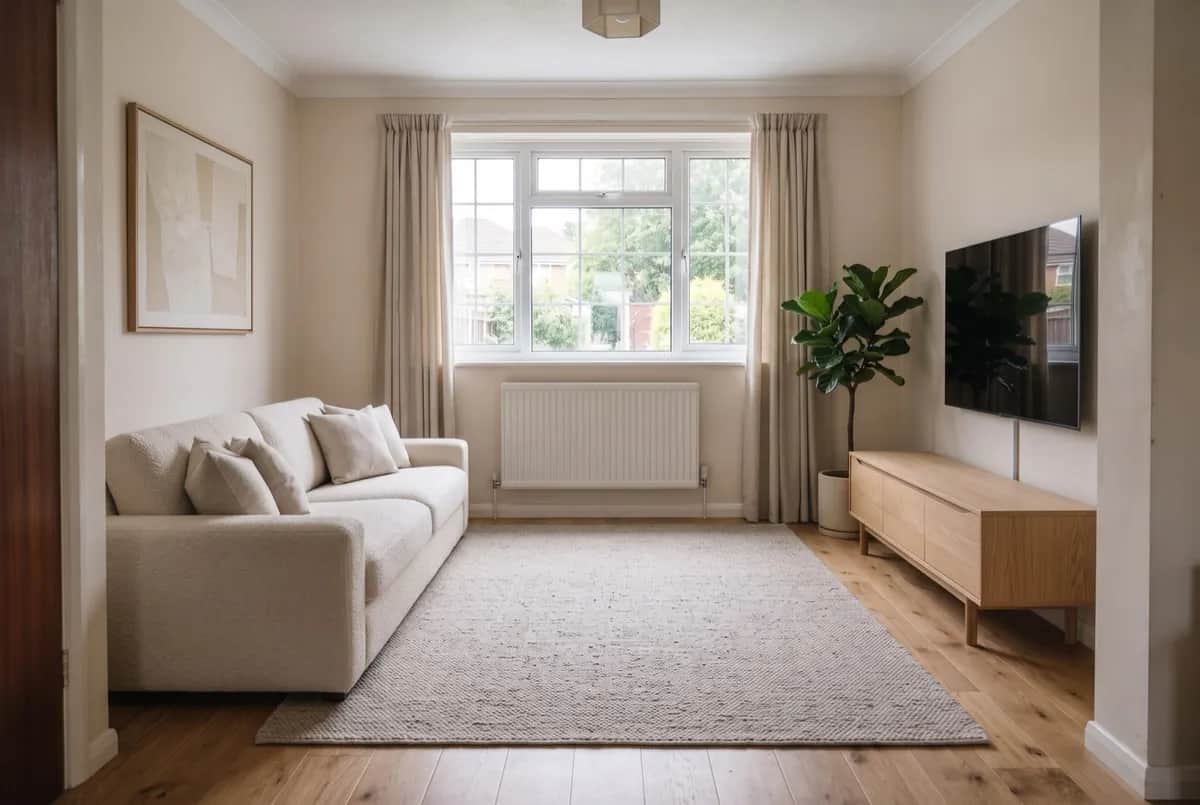
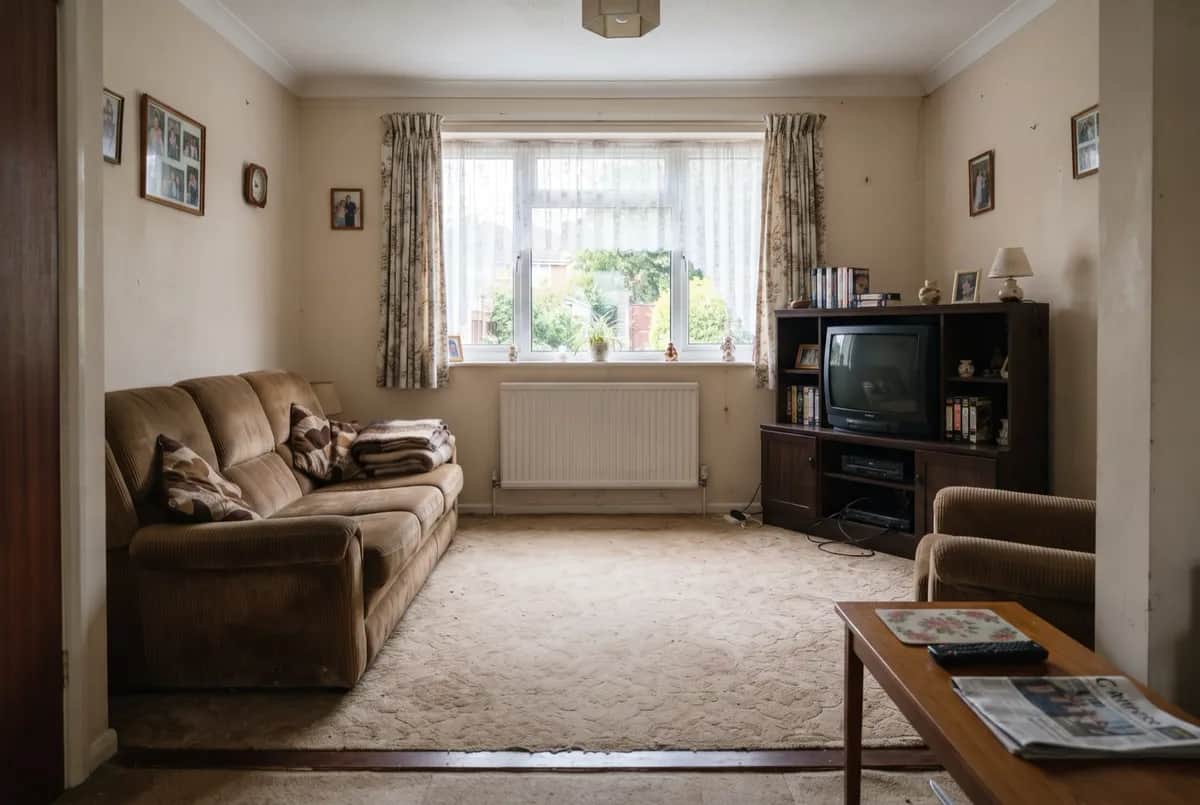
Upload a photo of your room and choose a style. In about a minute, this interior design tool previews new furniture, colours and finishes; then compare the result with your original photo.
Why choose this AI interior design tool
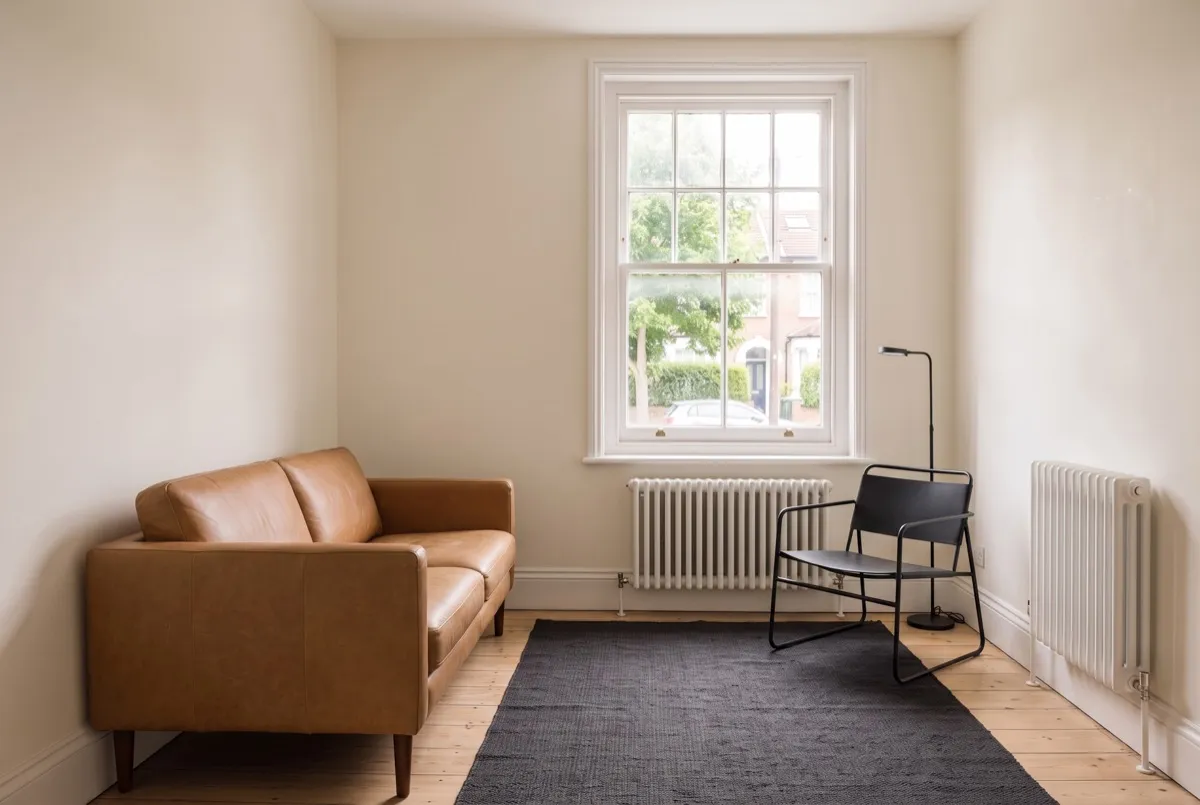
See a new style in your own room
Start with a photo of your space. Explore different furniture, colours and finishes before deciding what to change. AI-generated images can alter details, so check each result against your original photo.
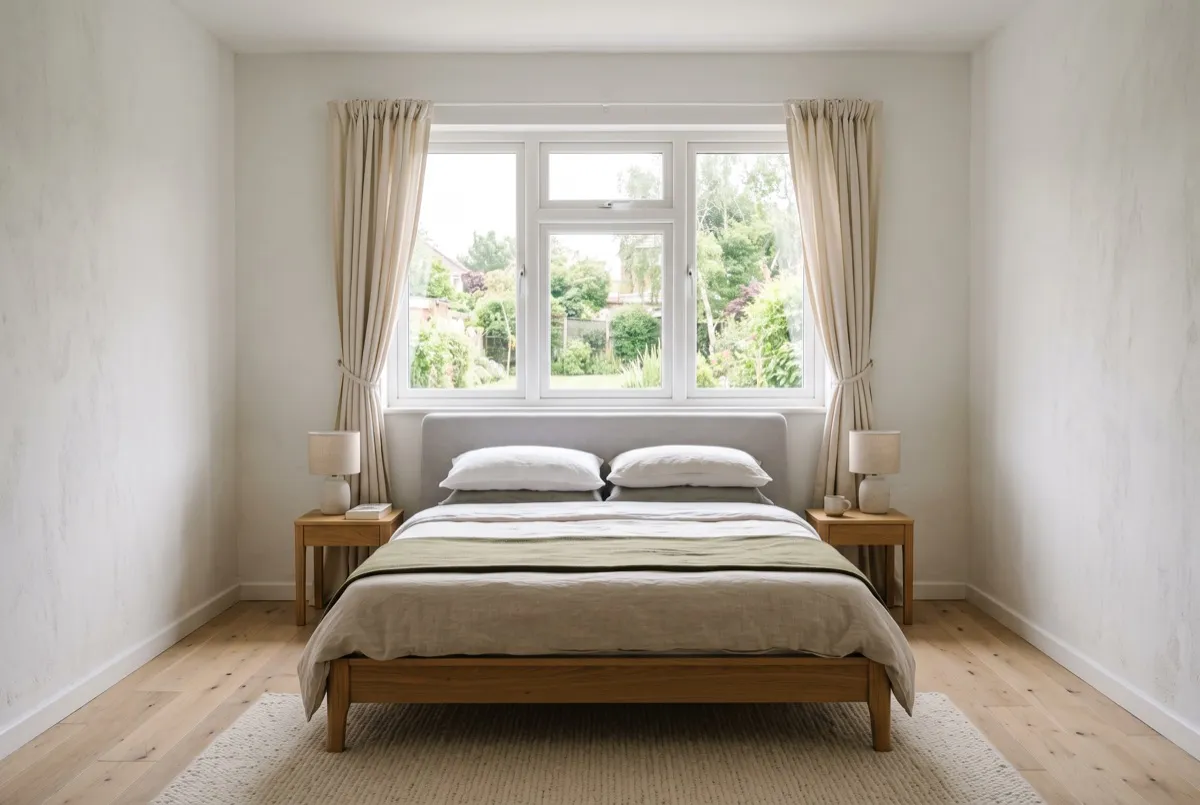
Compare different styles
Try Japandi, modern or coastal with the same photo. Compare the results to see which direction you prefer. Each new generation uses credits.
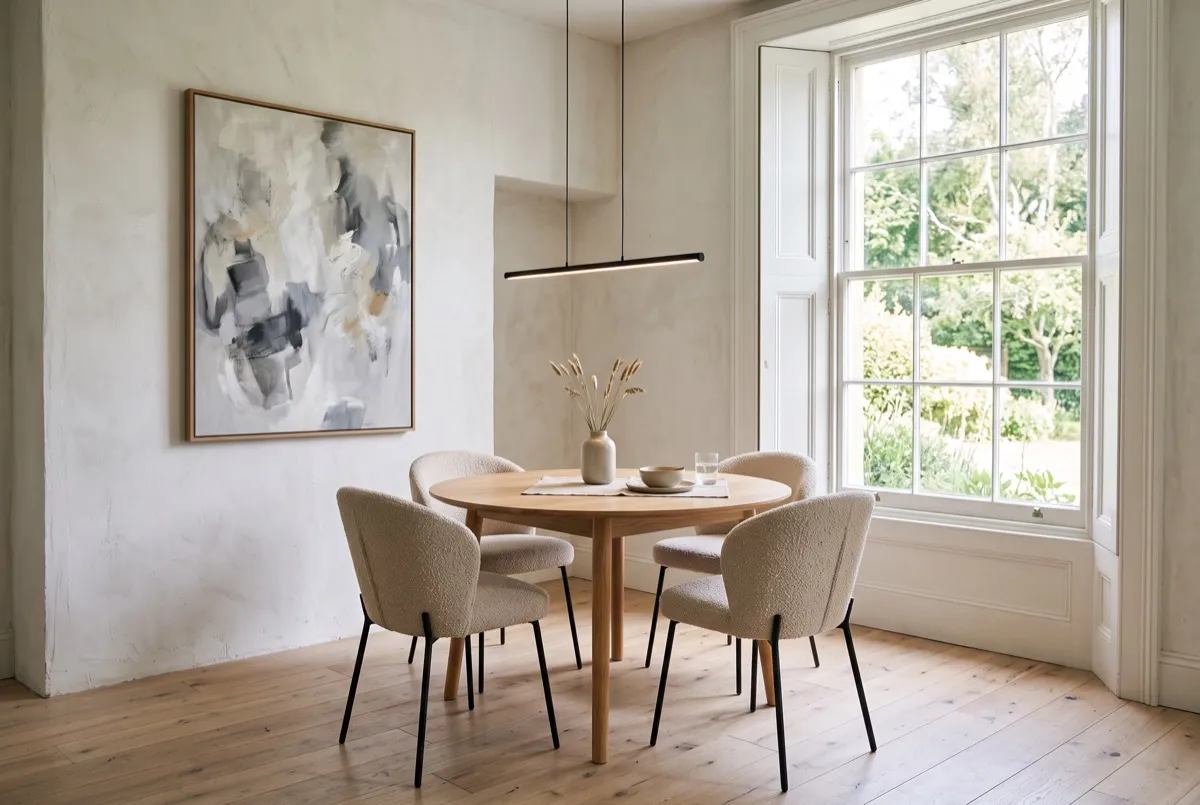
Download and share your design
Save the image and share it with your partner, designer or contractor to explain the look you have in mind. Use it to discuss ideas before choosing furniture or materials.
Redesign your room in three steps
- 1
Upload a photo
Use a clear, well-lit photo that shows as much of the room as possible. Include the walls and floor rather than a close-up of one piece of furniture.
- 2
Choose a style
Select your room type and a style. Add any preferences, such as warmer colours or more plants. The AI may not follow every detail, so review the result.
- 3
Generate and compare
Sign in and generate your design. About a minute later, drag the slider to compare it with your original photo, then download the image or try another style.
AI interior design FAQ
3 free generations for new accounts. Sign-up includes 30 credits shared across tools. Each tool generation uses 10 credits. Additional generations require more credits. Free generations are watermarked and output at 1248×832; paid plans remove the watermark. View pricing · My designs
How much does it cost?
New accounts receive 30 credits, enough for 3 free generations. Each generation uses 10 credits. Sign in to check your balance. Additional generations require more credits; see the pricing page for plans. Free generations include a watermark and are 1248×832.
Will it look like my actual room?
The AI interior design tool uses your photo as a reference, but it may change room details or proportions. Check the result against your original photo. Do not use the image to take measurements or plan construction.
What kind of photo works best?
Use a clear photo taken in good light, with the walls, floor and main furniture visible. Avoid heavy filters, blurry photos and extreme wide-angle shots.
Can I use it to discuss a project with a client?
You can use the image to discuss styles, colours and furniture ideas. It is a visual concept, not a floor plan, construction drawing or specification. Confirm dimensions and materials separately.
How many styles can I try?
You can generate another version with a different style while you have enough credits. Each generation uses 10 credits, even when you use the same photo.
What happens to my photos?
Your photo is sent to an image-generation provider to create the result. Saved designs are available in your account history, where you can delete them. Provider retention is governed by its own terms. For data-deletion requests, contact contact@spaceora.app.