Can AI Change Furniture in a Photo?
Learn how to select furniture in a room photo, describe a replacement, and check the result before buying. Includes a dated Spaceora access test.
TL;DR
Upload a clear room photo, select the furniture, choose a type and style, and describe the replacement. Then compare the full image with the original. Treat the result as an appearance preview; measure the real space and confirm the actual product before buying.
Direct answer: AI can replace a selected piece of furniture with a generated alternative, but it cannot guarantee an exact retail product, dependable dimensions, or a perfectly unchanged background. In our October 26, 2026 Spaceora test, the free account could upload a photo and prepare a manual selection, but generation stopped at a paid-access gate. The test therefore confirms the setup workflow and access boundary, not output quality.
What we verified in Spaceora
We used an authorized 2000 × 1333 WebP room photo in a signed-in account labeled Free, with 3 free redesigns left. The live tool accepted JPG, PNG, and WebP files up to 12 MB. Its page stated that furniture replacement is a paid editing feature and that each replacement uses 10 credits.
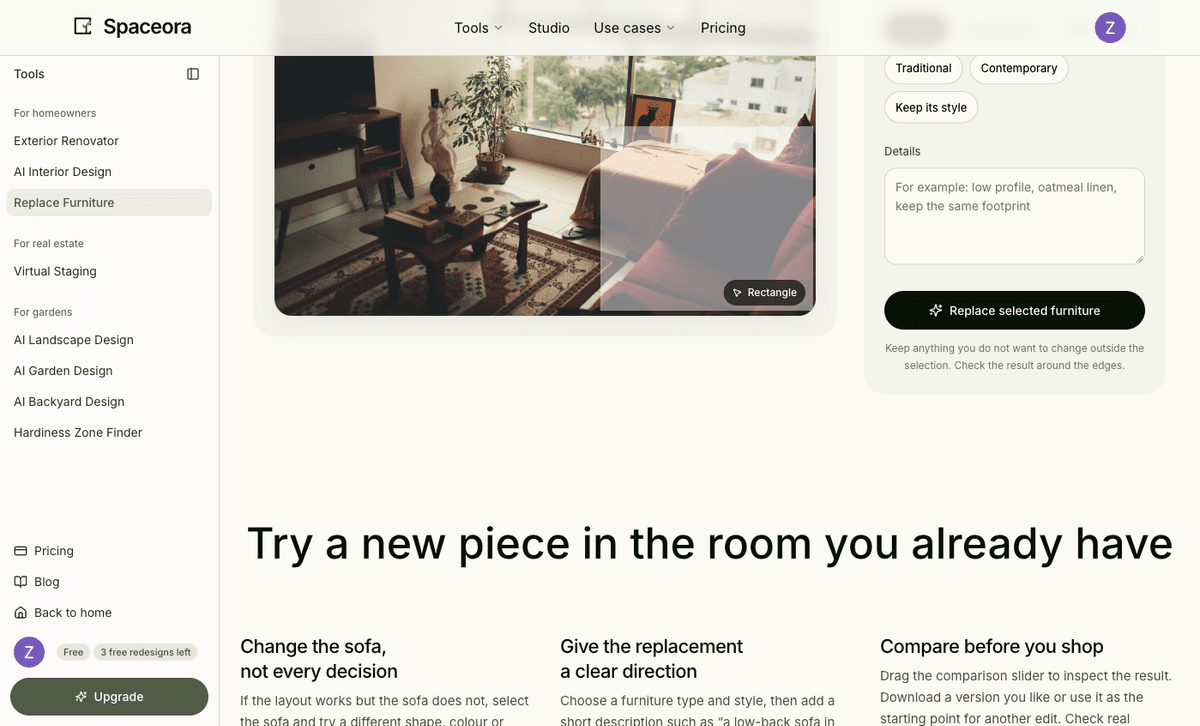
The observed workflow offered manual Brush, Rectangle, Erase, and Clear selection controls, plus brush-size adjustment. Furniture types were Sofa, Chair, Table, Bed, Storage, and Other. Direction choices were Modern, Scandinavian, Mid-century, Traditional, Contemporary, and Keep its style. A text field accepted color, material, and shape details. We did not find a separate reference-product-image input.
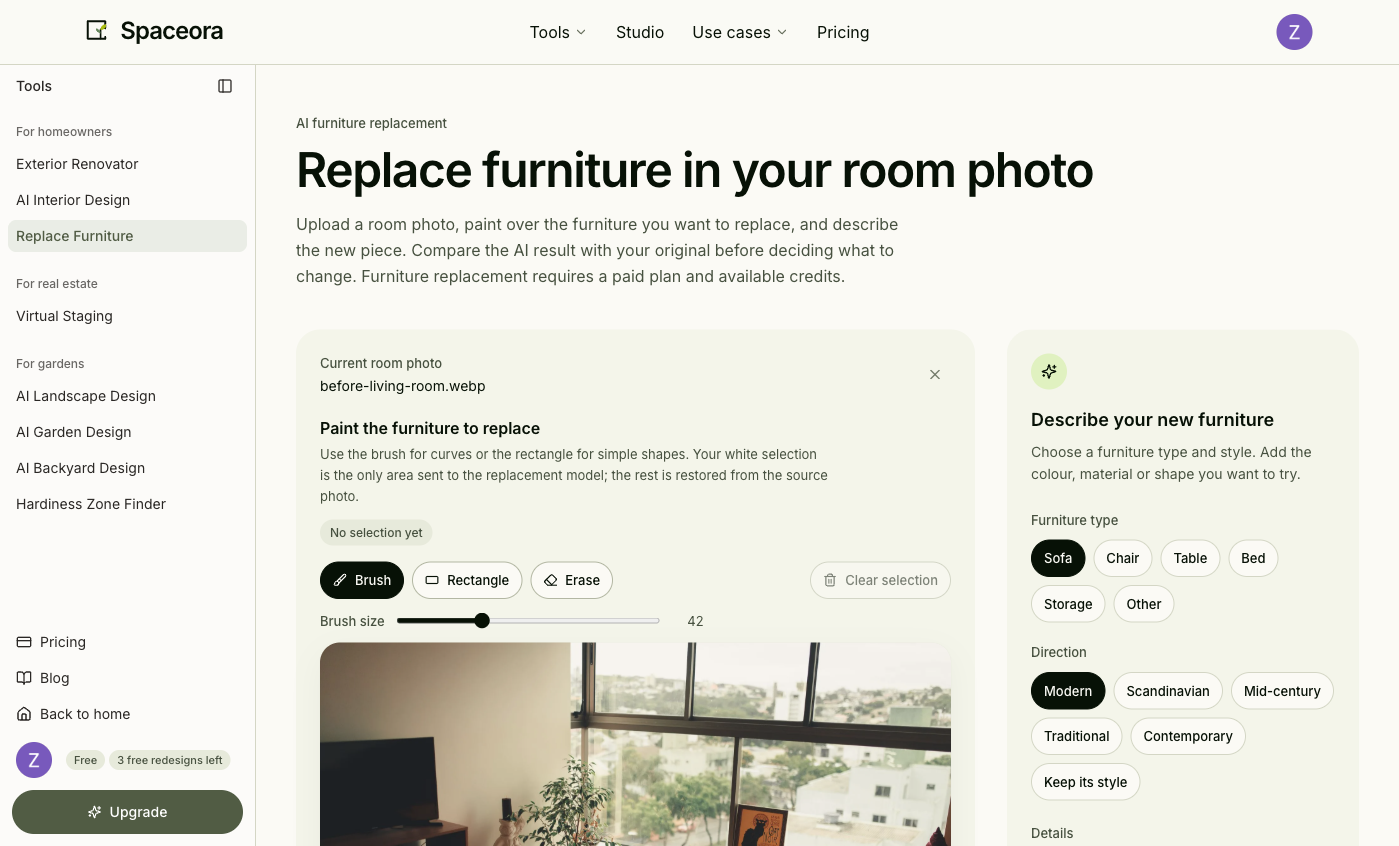
Observed in the signed-in Spaceora interface on October 26, 2026. This is the upload step, not a generated result.
How to prepare a furniture replacement
1. Upload a photo that shows the whole item
Use a level, well-lit photo that includes the complete chair, sofa, or table and some floor and wall around it. Heavy cropping and foreground objects make the boundary harder to define.
The tested interface displayed the filename after upload and moved directly to the selection canvas.
2. Select the furniture manually
Open Spaceora's furniture replacement tool. Paint over curved edges with the brush or use the rectangle for a simple shape. Use the eraser to tidy the boundary. The interface says that the white selection is the only area sent to the replacement model and that the rest is restored from the source photo.
A selection that misses the legs can leave pieces of the old item behind. A broad selection can include floor, wall, or neighboring furniture. Even with source restoration, inspect the boundary after generation.
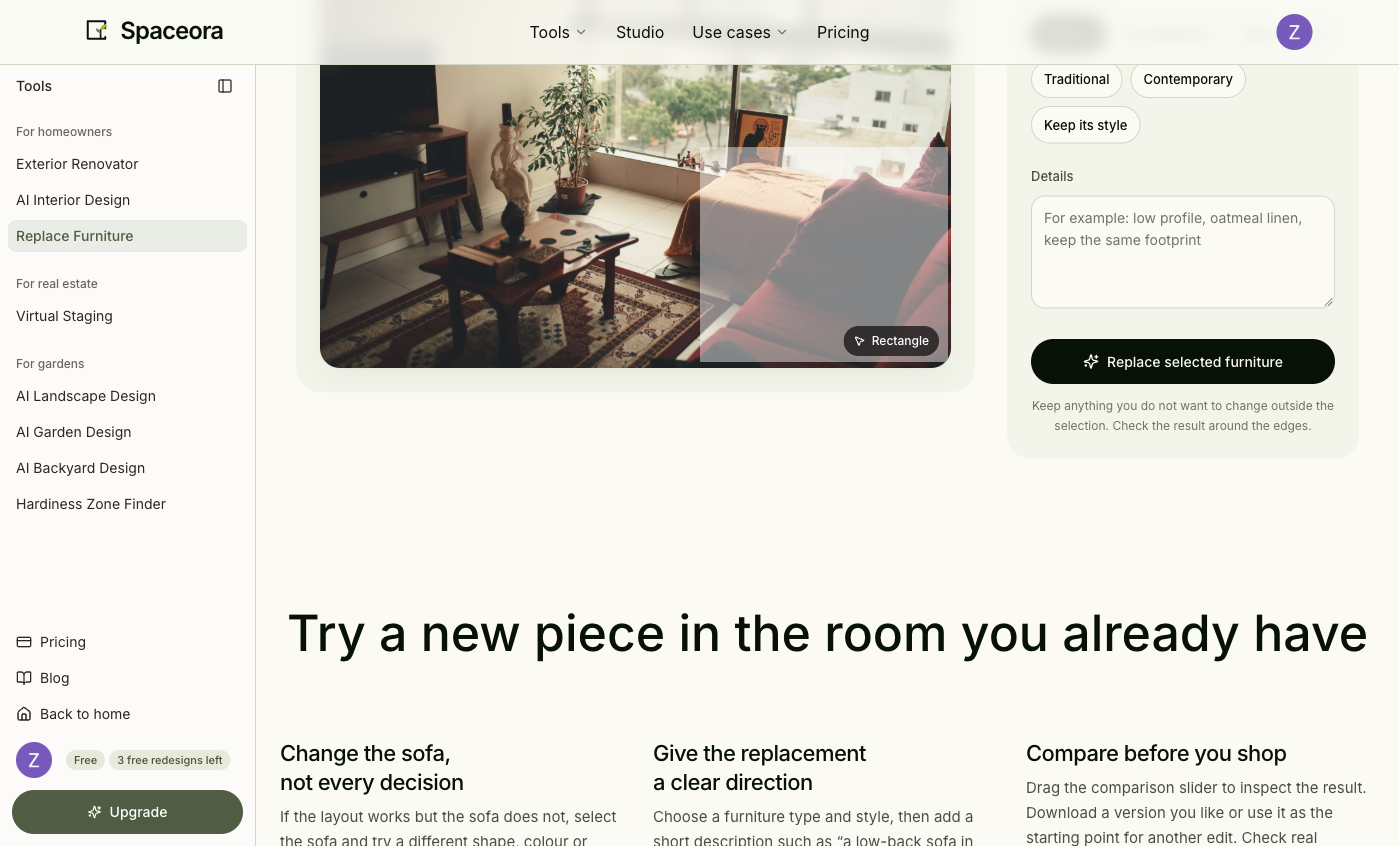
Our manual selection test. The screenshot confirms the available masking controls and a ready selection; it does not show an AI output.
3. Choose a type, direction, and visible details
For our test, we selected Sofa, kept the Modern direction, and entered:
low profile, oatmeal linen, straight arms, keep the same footprint
Describe only properties that a picture can help you judge: broad shape, material, and color. Keep the first request narrow so you can tell what changed.
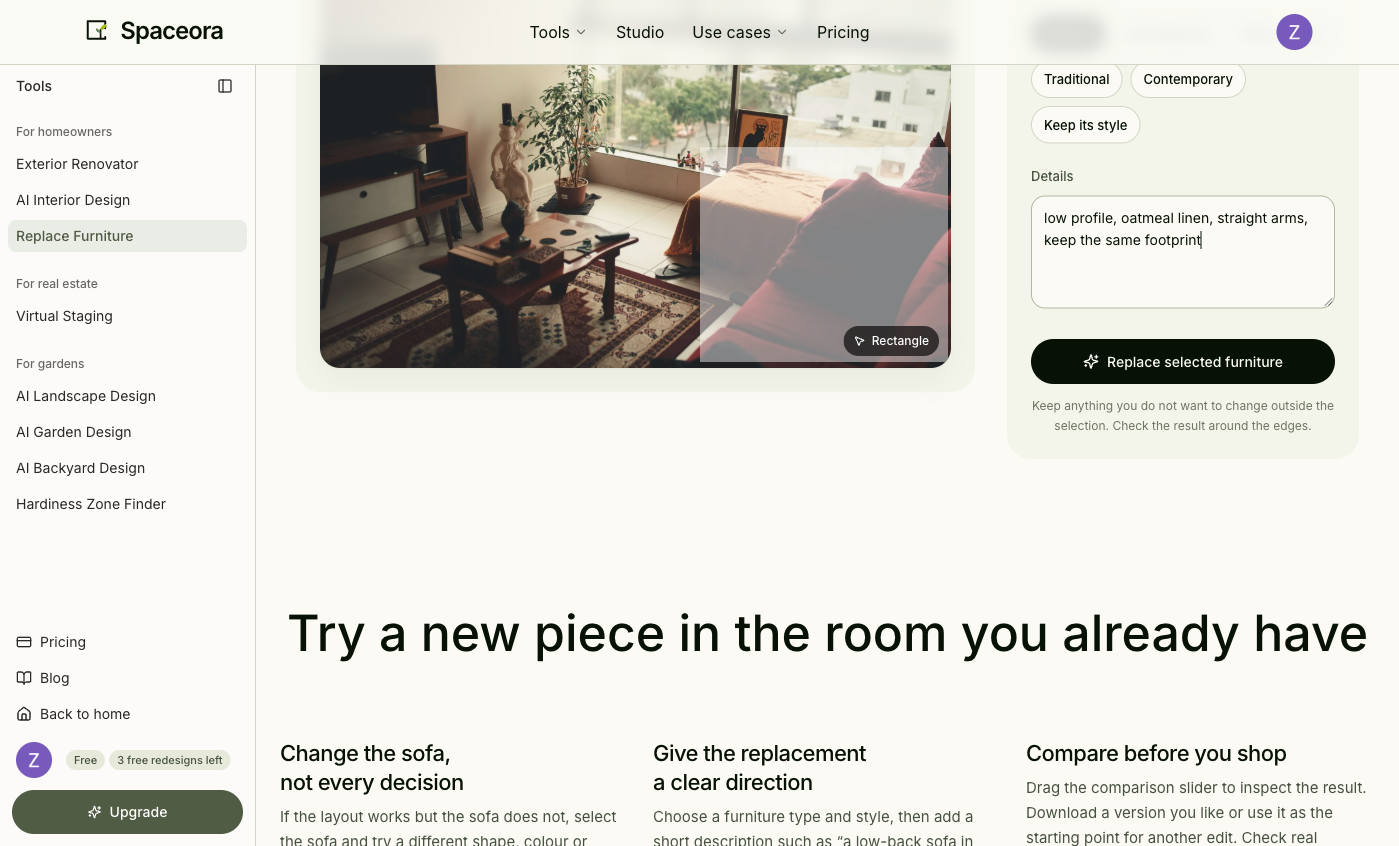
Settings captured before generation. No separate product-reference upload was present in this interface.
4. Check access before expecting an output
Clicking Replace selected furniture briefly showed “Replacing furniture…” and then returned an error stating that furniture replacement requires paid access and available credits. The account still showed 3 free redesigns left. We did not purchase a plan, so no genuine after image was produced and this article makes no claim about the tool's output quality.
The account-level error text and UI snapshot are preserved in the evidence manifest. Free signup redesigns did not unlock this local editing workflow.
Check Spaceora pricing before starting. On the same date, the public pricing page showed a free plan with 30 credits, paid monthly plans, first-image generation at 10 credits, and subsequent edits at 15 credits. The furniture tool itself stated 10 credits per replacement. Confirm the selected plan and checkout because pricing and entitlements can change.
5. Inspect a paid result before buying furniture
If your account can generate, compare the output with the original at the same crop. Check whether the old item was removed, then inspect the selection edge, floor pattern, baseboard, wall, shadows, neighboring furniture, and camera viewpoint.
Measure the available width, depth, and height separately. Check doorways, stairs, elevators, outlets, heating vents, and walking clearance against the retailer's current specifications for the exact item.
What if the edit changes more than the furniture?
| Problem | What to try | | ------------------------------ | --------------------------------------------------------------------- | | Part of the old object remains | Return to the original and include the missed edge in the selection | | Floor or wall changes | Reduce the selection and simplify the replacement description | | Shadows look disconnected | Regenerate from the original with one material and shape direction | | The new item looks too large | Reject the implied scale and use real measurements | | Nearby furniture moves | Return to the original rather than continuing from the incorrect edit |
These steps can improve the next attempt, but they do not guarantee an isolated edit.
Does the result show the exact product I can buy?
Usually, no. A text-directed replacement is a generated design direction, not an identified SKU. Similar color and shape do not establish the manufacturer, dimensions, fabric, price, stock, or delivery terms.
The tested Spaceora workflow did not provide a separate reference-image field. Verify the retailer listing and real measurements independently.
Try one replacement before changing the whole room
Change one item and write down what you want to learn about color, shape, or visual weight. Use furniture replacement for a focused paid edit, or AI interior design for a broader room direction. The room-photo decorating tutorial explains the broader process.
Frequently asked questions
Can I change only the sofa in my photo?
You can manually select the sofa and request one replacement, but a generated result can still affect selection edges or nearby pixels. Compare the full image with the original.
Is Spaceora furniture replacement free?
Our October 26, 2026 free-account test reached the selection and settings steps but generation stopped at a paid-access gate. The tool stated that each replacement uses 10 credits. Check current plans before generating.
Will the rest of the room stay unchanged?
The interface says it restores areas outside the selection from the source photo. Still inspect walls, windows, floor patterns, shadows, and selection edges in the finished image.
Can I upload a photo of a specific product?
We did not find a separate reference-product-image input in the tested workflow. The available inputs were furniture type, style direction, and text details.
Can I use the image to check whether the furniture fits?
Use a preview to judge appearance only. Measure the room and compare those numbers with the exact product specifications.