How to Use ChatGPT to Design a Room From a Photo
Use a room photo and clear prompts to explore design ideas with ChatGPT. Follow the steps, refine one change, and check the result against your space.

TL;DR
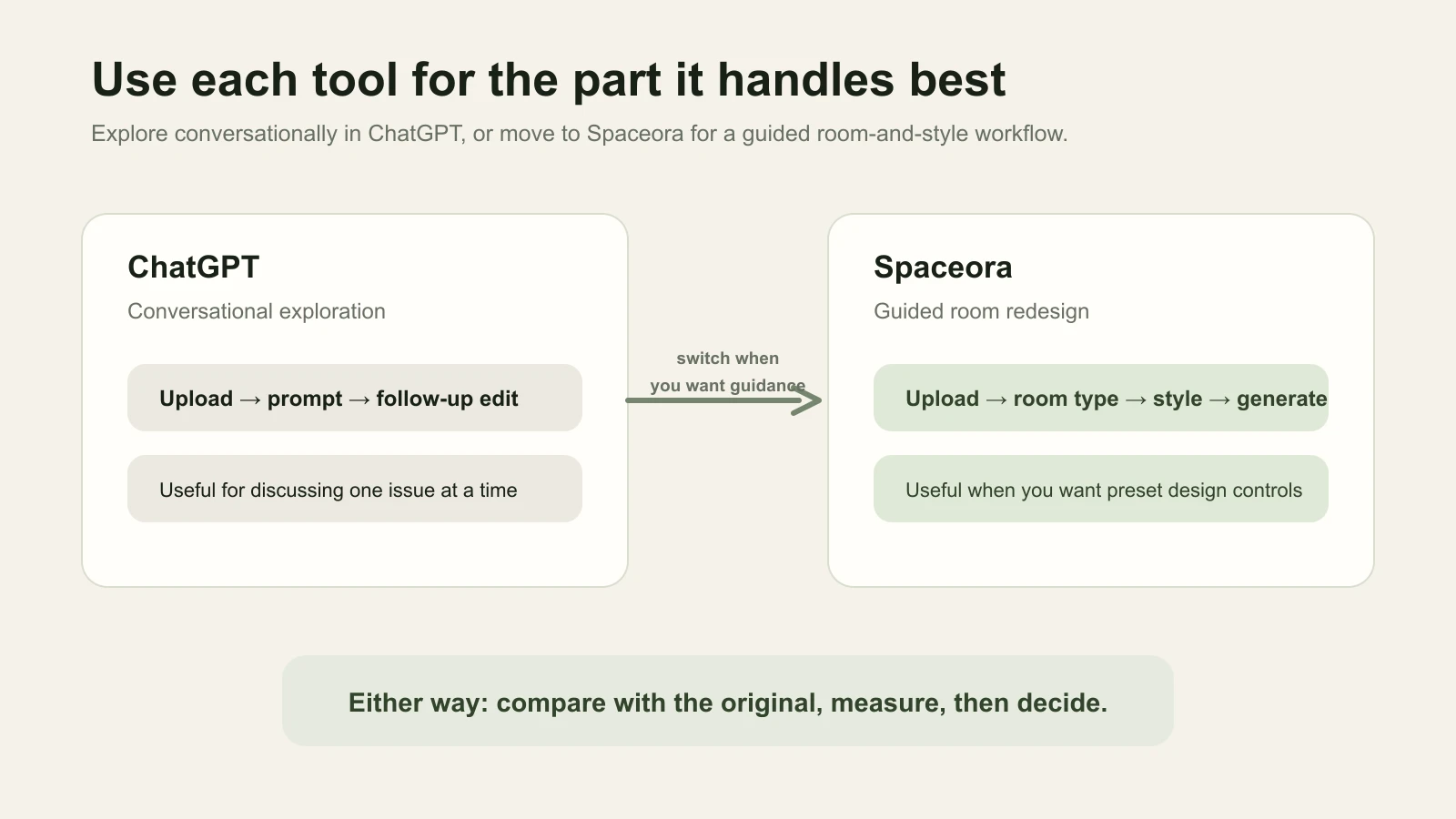
Upload a clear room photo, describe the decorating goal, and list the doors, windows, and furniture you want to keep. Ask ChatGPT for an edited visual and refine one problem at a time. If you want a guided room-type and style workflow instead of writing prompts, upload the same photo to Spaceora's AI interior design tool.
Direct answer: ChatGPT can discuss a room image and create or edit a visual direction when image features are available for your account. State the room's purpose, one style, the fixed features, and the allowed changes. Spaceora offers a guided alternative with room-type and style controls. In either workflow, inspect the output and measure the real space because a preservation request is not an accuracy guarantee.
A vague request such as “redesign my room” can return an attractive image that also changes a window, replaces furniture, or invents space. The steps below make the result easier to evaluate by limiting the task and refining one change at a time.
What do you need before using ChatGPT?
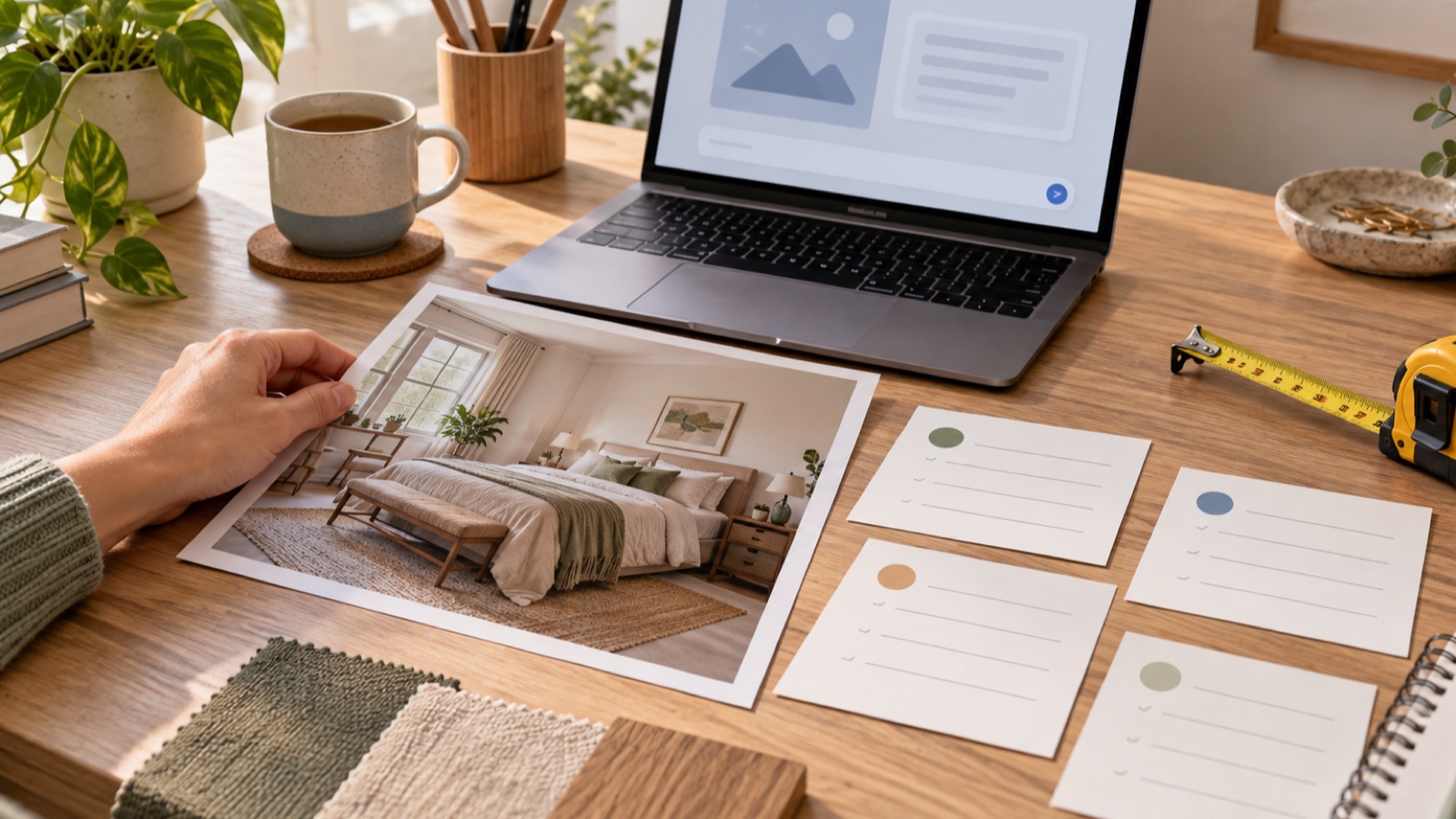
Use a room photo you have the right to upload. It should show the main furniture, door, windows, and visible floor without personal information in mirrors, papers, screens, or family photos.
OpenAI says image inputs and ChatGPT Images are available across current plans, subject to plan-specific limits and account settings. Its image-input guide lists PNG, JPEG, and non-animated GIF for still images and warns that unclear, panoramic, or fisheye images can be harder to interpret.
Write down one goal, the features that must stay, and real measurements when fit matters. Do not ask ChatGPT to infer dependable dimensions from the photo.
How to use ChatGPT to design a room, step by step
1. Upload a clear photo
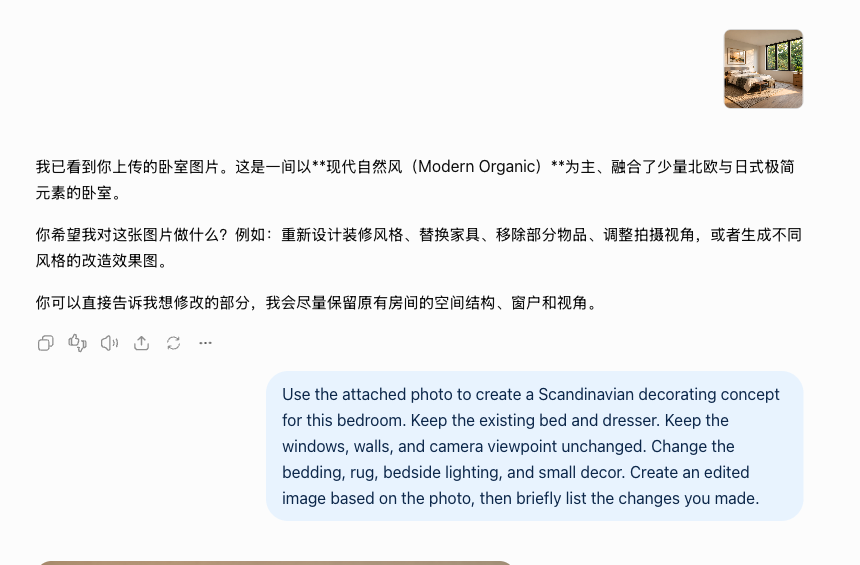
Open ChatGPT and start a conversation. Add the room photo using the attachment control in your current interface; dragging or pasting may also be available. Confirm that the correct image appears before sending the full request.
2. Describe the goal and what must stay
Include the room and its use, the style direction, the fixed features and furniture, and the changes allowed in this round. For the test bedroom, the task is a Scandinavian direction that keeps the bed, dresser, windows, walls, and camera viewpoint while changing bedding, the rug, lighting, and small decor.
Constraints make the output testable. They do not force the model to reproduce the room with measured accuracy.
3. Ask for a visual redesign
Say explicitly that you want an edited image. OpenAI's ChatGPT Images guide says users can upload an existing image and describe the desired change.
Use this structure: goal + fixed elements + furniture to keep + allowed changes + output format.
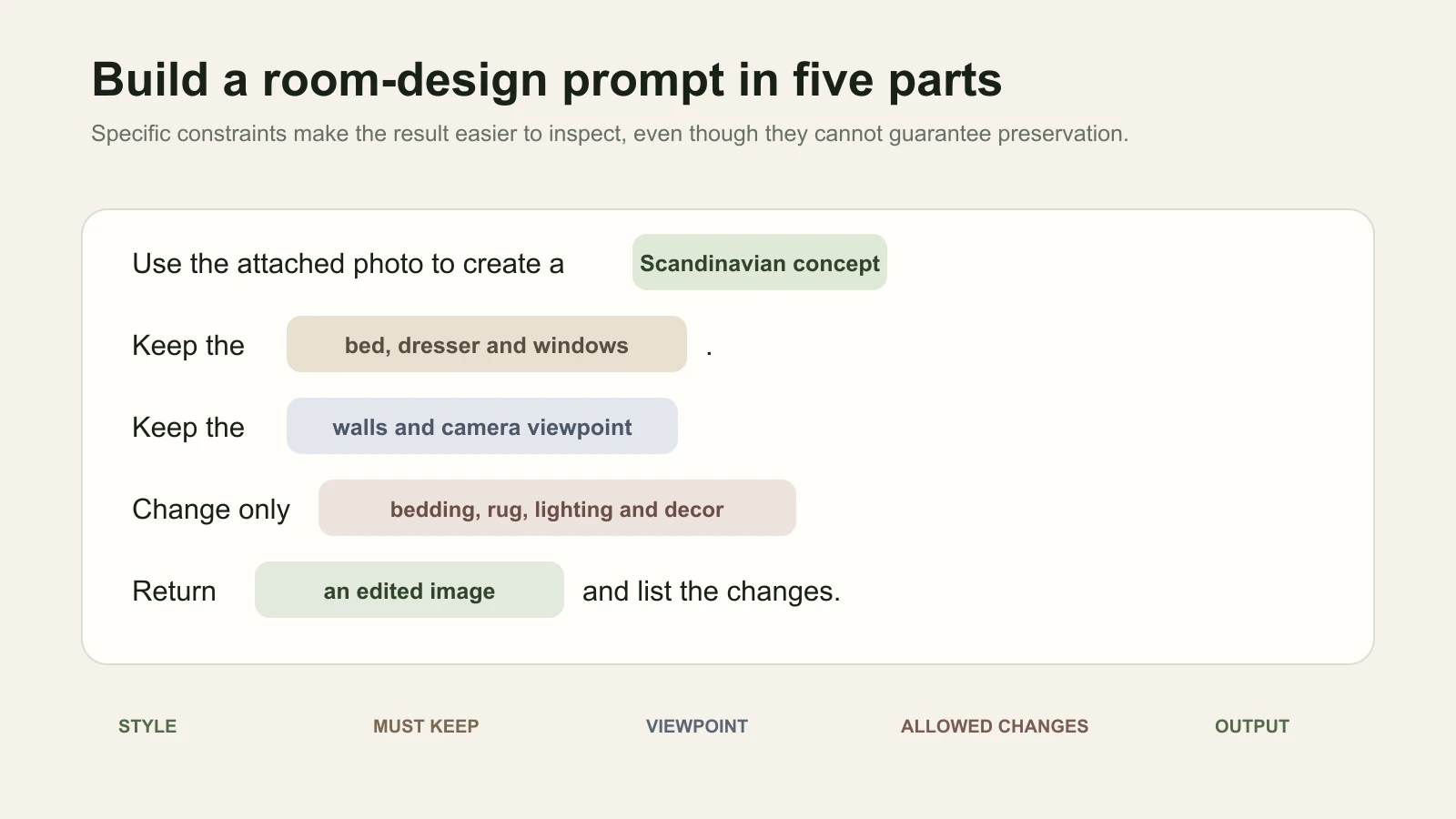
Use the attached photo to create a Scandinavian decorating concept for this bedroom.
Keep the existing bed and dresser. Keep the windows, walls, and camera viewpoint unchanged.
Change the bedding, rug, bedside lighting, and small decor.
Create an edited image based on the photo, then briefly list the changes you made.
In our test, sending the photo before the full instruction produced a text-only description asking what to change. Sending the explicit image-editing request in the next message started image generation. That is a useful recovery step if the first response contains advice rather than a visual.
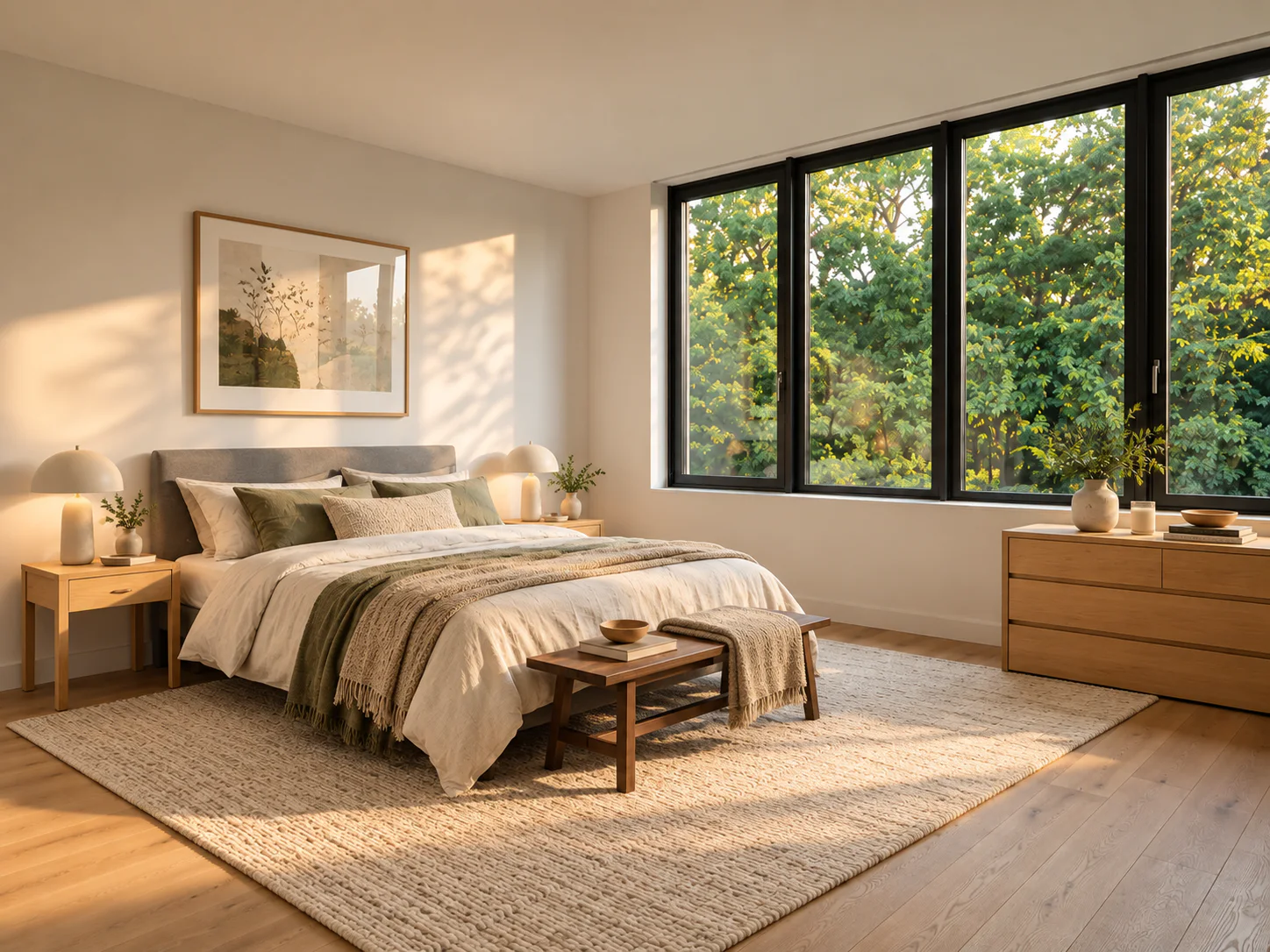
The first image kept the three-window wall, the bed against the left wall, the dresser below the windows, and a similar camera direction. It changed more than finishes: the headboard, bedside tables, artwork, bench, rug size, outdoor view, and proportions were re-created. The output worked as a mood concept, but it was not a faithful furniture-preservation edit.
4. Refine one change
Inspect the first image and pick one issue. If the room is broadly usable but the rug color is wrong, request only that adjustment:
Use the last image as the starting point. Change only the rug to a muted blue.
Leave the bed, dresser, lighting, walls, windows, and camera viewpoint unchanged.
Return an updated image without making other design changes.
If a major fixed feature has moved, restart from the original photo with fewer requested changes instead of building on the incorrect image. OpenAI notes that selections are not always precise and edits can extend beyond the selected area, so compare the whole revision.
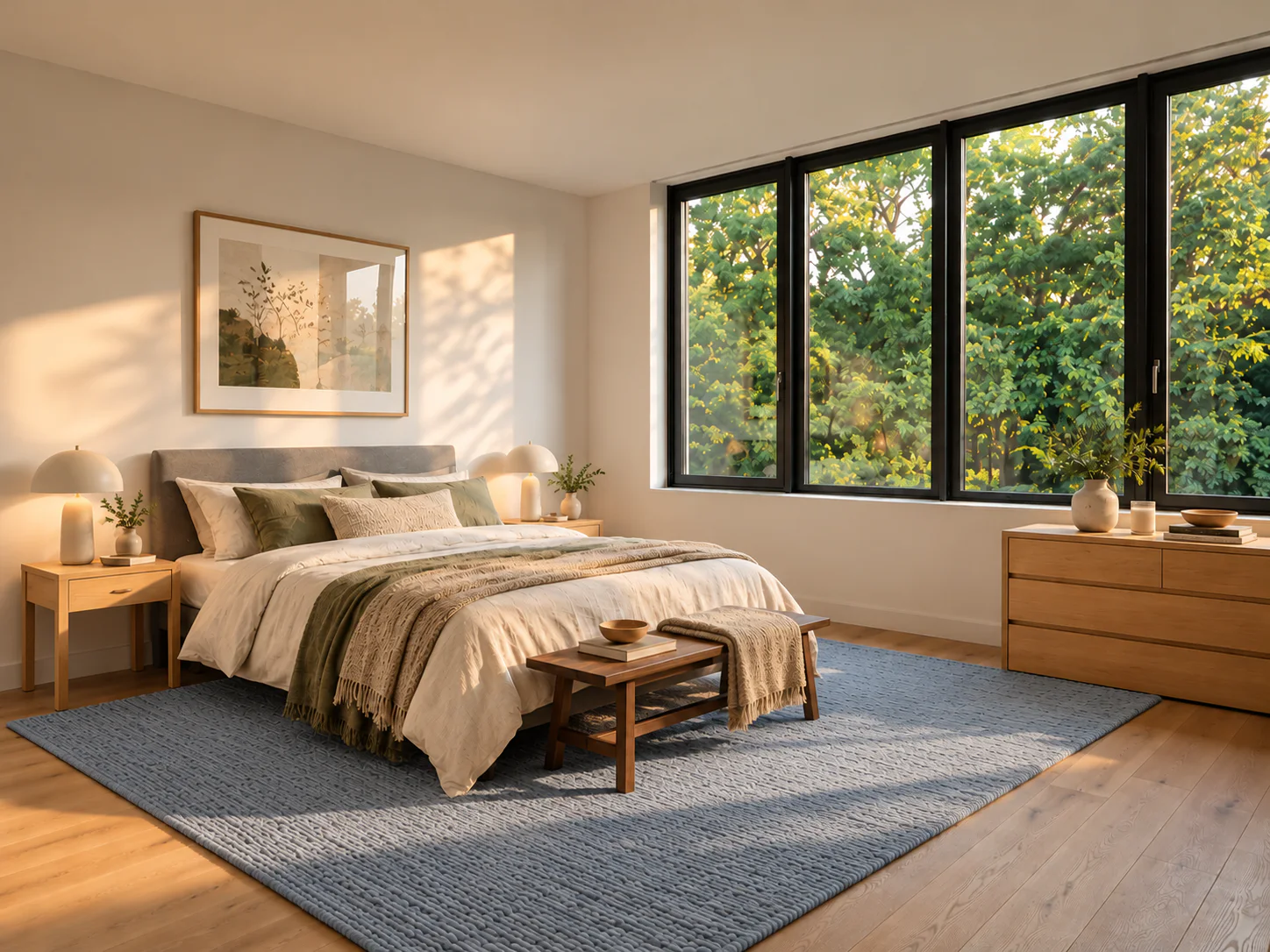
The follow-up changed the large rug from warm beige to muted gray-blue. The bed, bedding, lamps, wall art, windows, dresser, bench, and viewpoint remained visually consistent with the first generated image. The rug texture and nearby light were also redrawn slightly, so “change only” still did not mean a pixel-level isolated edit.
5. Compare the output, or try the same photo in Spaceora
Check whether the windows and walls remain recognizable, whether the furniture count or scale changed, whether walking space is still open, and whether the follow-up affected anything beyond the rug.
A generated image and a design that fits the room are different outcomes. OpenAI's image-input documentation says spatial localization can be difficult and images may be resized before analysis. Do not derive exact measurements, paint codes, product IDs, inventory, or structural feasibility from the image.
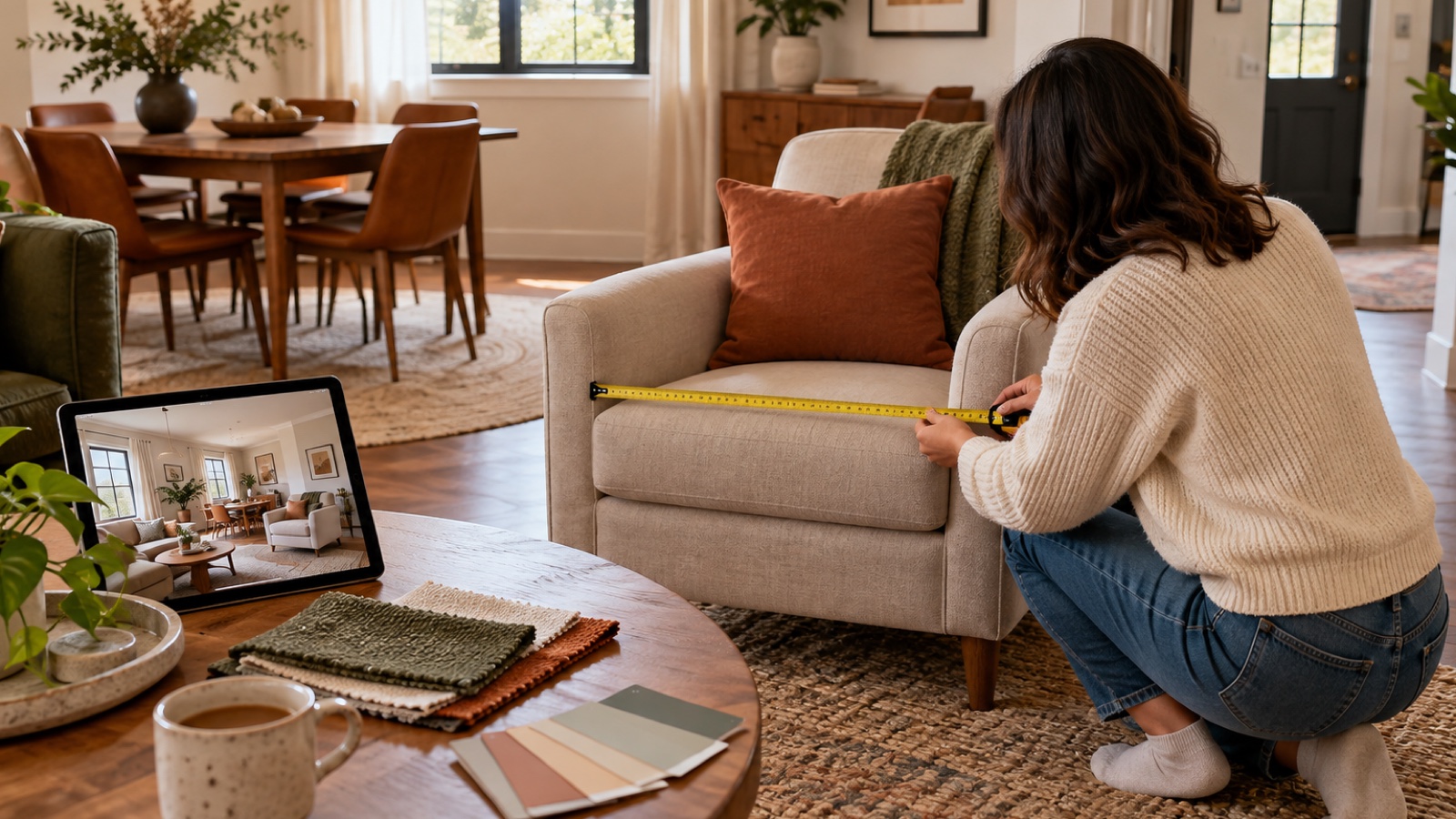
If prompt writing is slowing you down, open Spaceora, upload the original photo, choose the room type and style, and generate a guided alternative. Keep the original photo and decorating goal consistent so you can compare the two workflows fairly. Spaceora's controls reduce prompt setup; they do not guarantee exact preservation or measured fit.
What if ChatGPT changes the room or hits a limit?
| Problem | What to do |
|---|---|
| The response contains text but no image | Ask for an edited image, or use Spaceora when you prefer a guided image workflow |
| A window or major item changes | Retry from the original with fewer allowed changes, then compare the full room |
| A local edit affects other areas | Compare the full image and keep only the useful idea |
| The account reaches a limit | Follow the account message, or test the same room in Spaceora under its current allowance |
Limits vary by account and plan. Do not rely on a fixed daily image number or use workarounds to bypass a product limit.
When should you move from ChatGPT to Spaceora?
Use ChatGPT when you want a conversational workflow and detailed follow-up requests. Move to Spaceora when you want to upload a room, choose its type, select a design style, and generate without building the full prompt yourself.
Spaceora's AI interior design tool provides that guided path and lets you compare preset styles on your own photo. This workflow difference does not prove that either tool is more accurate, cheaper, or faster. For broader choices, see the AI interior design tools comparison.
Save the idea and check it before buying
Save one candidate image and list two or three changes worth considering. Measure the room, check furniture clearance, and test material or paint samples in its actual light. To turn the same photo into a guided style comparison, try it in Spaceora.
Frequently asked questions
Can ChatGPT design a room from a photo?
ChatGPT can analyze a room photo, offer advice, and create or edit a visual concept when image features are available. It does not replace a measured floor plan or construction document.
How do I keep ChatGPT from replacing my furniture?
Name each important item and limit the permitted changes. Then compare the output with the original, because the instruction does not guarantee preservation.
Can I use ChatGPT for room design for free?
OpenAI currently says image inputs and ChatGPT Images are available across plans, subject to plan-specific limits and settings. Check the controls and messages shown in your account.
Can ChatGPT tell me whether furniture will fit?
Use real measurements for furniture, walls, doorways, and walking clearance. Treat the generated image as visual direction rather than dimensional verification.
Related guide
For a guided room-and-style workflow, read How to Use AI to Decorate a Room From a Photo.