How to Plan an AI Room Design With Real Furniture and a Budget
Plan a room around real furniture, local prices and a budget. Review product matches, swaps and dimensions before using an AI concept to guide purchases.
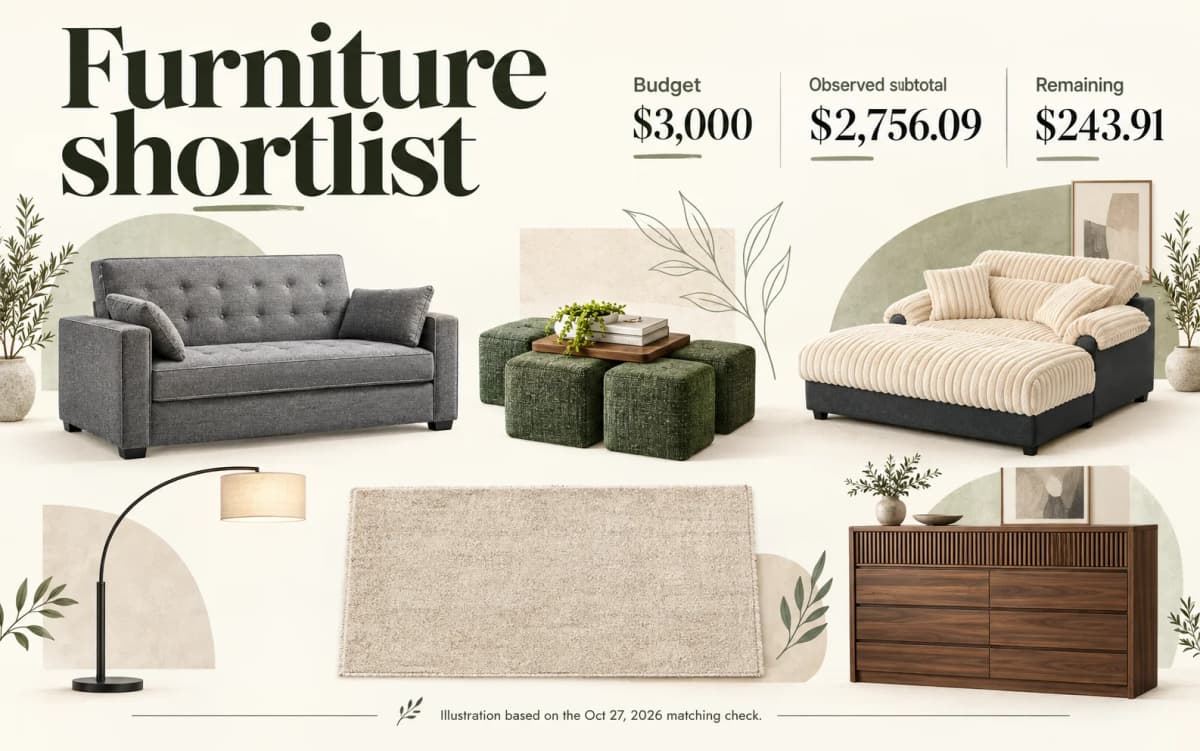
AI-generated editorial illustration of the recorded October 27, 2026 shortlist and budget. Furniture is illustrative, not an exact merchant SKU or a generated-room test. Observed prices are not offers.
TL;DR
Set a furniture budget in your shopping market, review real product cards, and replace unsuitable items before generating a room concept. Keep money aside for costs the shortlist cannot confirm, then check measurements, variants and delivery with each merchant.
Direct answer: AI room design with real furniture starts with identifiable products rather than an image you must shop for afterward. Spaceora's AI Room Design tool matches a regional furniture set first and supplies the selected product images as generation references. Those cards give you something concrete to verify, but they do not guarantee an exact rendered SKU, physical fit or checkout price.
On October 27, 2026, we checked the free product-matching and replacement steps using a US living-room budget of $3,000. We did not generate a new room image, place an order or test delivery.
1. Set a furniture budget and choose your market
Use a furniture-only spending limit before comparing complete room schemes. A room renovation budget can include painting, electrical work, installation and labor; a furniture subtotal does not cover those jobs.
The checked tool supports the United States, United Kingdom and Australia, with USD, GBP and AUD respectively. Choose where you intend to buy. Changing the country is not simply converting the same basket into another currency: regional offers and products can differ.
Our test used United States, Living room, Modern, a $3,000 budget and optional postal code 02139. The postal-code field was not address-level delivery verification. Leave room for tax, delivery, assembly and price changes, and confirm those costs separately before treating the budget as affordable.
2. Prepare the room photo and review the first set
Use the room photograph to explain the space; use product cards to identify the proposed purchases. They serve different purposes.
Prepare a clear photo showing walls, floor, windows and the area you want to furnish. Select the correct room type. Avoid substituting a sofa's retail photograph for the room input. Product reference images belong to the furniture selection, not the space photograph.
Our free matching check did not require an uploaded room photo. It returned six products with a subtotal of $2,756.09 and $243.91 remaining from the $3,000 budget. That verifies a shortlist calculation, not whether those six pieces fit together in a particular home. The room-photo field remained empty during the recorded check.
3. Inspect the cards, then replace one item
Read the full product title before judging its picture or price. A plausible category match can still be the wrong kind of purchase.
In our sofa alternatives, one entry was a sectional couch cover rather than a sofa. Reject that substitution when buying seating. Also check whether dimensions describe the whole item, one module or packaging. A name, thumbnail and three numbers cannot settle those questions.
Use Replace to open alternatives, then select one suitable candidate. We replaced the $1,138.14 Serta sleeper sofa with a Homall sectional listed at $349.99. This was a test of selection and arithmetic, not an endorsement of either product.
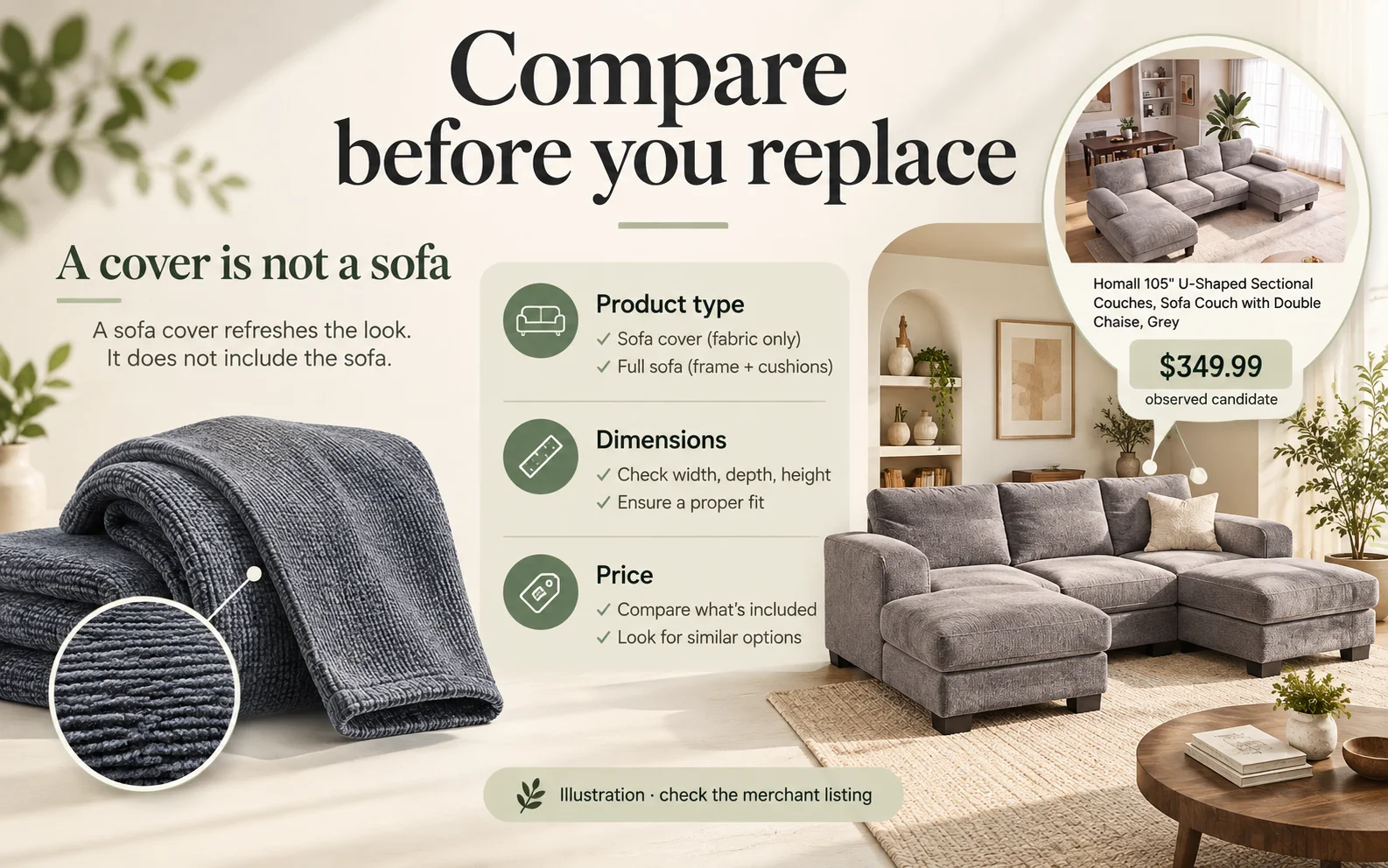
AI-generated editorial illustration of the product-type check and observed candidate price. It is not an interface screenshot or an exact product match; confirm the merchant listing.
The replacement reduced the subtotal to $1,967.94 and increased the remainder to $1,032.06. The difference, $788.15, equals the difference between the two observed sofa prices. Recheck the other five cards; changing one category does not make the rest a checked shopping list.
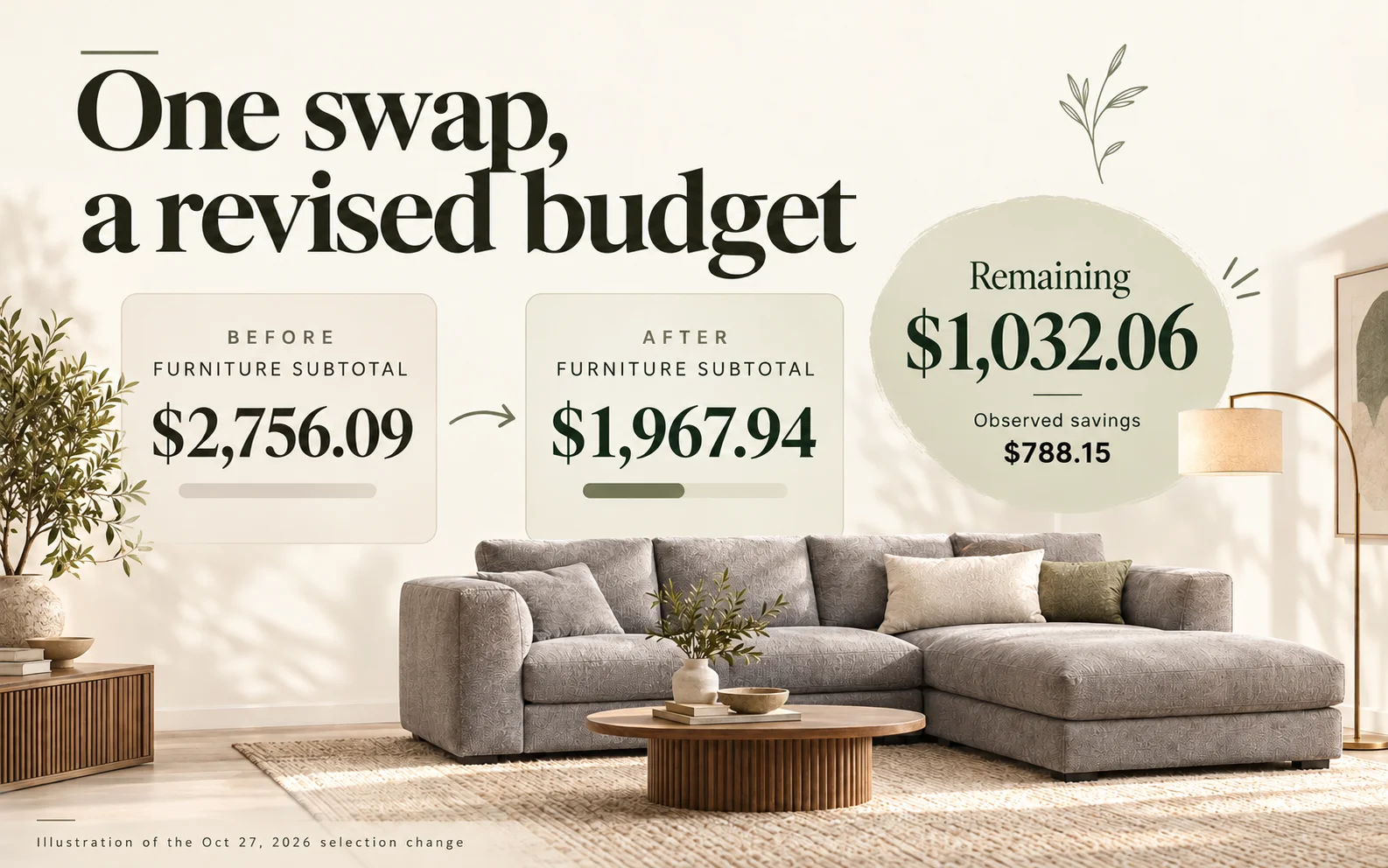
AI-generated editorial illustration of the recorded budget arithmetic. The room and furniture are illustrative; no new product generation test or merchant checkout was performed.
4. Generate only after the shortlist makes sense
Separate free matching from creating the room image. In the checked interface, matching was free and generation displayed a ten-credit cost. Current pricing gives new accounts ten shared starter credits for one ordinary generation; that is not a free allowance for every tool or unlimited editing.
Before generating, check your account balance and the selected products. Upload the intended room photo, review the style and notes, and remove anything that should not appear.
The tool also accepts custom product-reference photographs. Its interface says these custom items are excluded from the catalog subtotal. Add their real costs to your own budget record; an apparently generous remainder can otherwise be misleading. We did not test custom-reference generation for this guide.
5. Compare the concept with the selected products
Keep the product list beside the generated image. This workflow has product references, unlike a generic concept whose objects may have no associated shopping cards. References still do not make the rendered objects exact replicas.
Compare the sofa's shape, arms, legs, upholstery and color with its merchant image. Check the other selected pieces too, then inspect windows, fixed fixtures and room boundaries for unintended changes. Reject visual details that contradict the actual product or space.
Use dimensions from the chosen variant and your own measurements, including door access and circulation. For a rug, the rug size calculator can compare sizes using measurements you enter. It cannot extract a dependable footprint from the concept image.
6. Recheck the list before ordering
Turn each card into a verified purchase decision at the merchant. Confirm the exact model, variant, quantity, dimensions, current price, stock, delivery address and return conditions. The shortlist is not a reservation or an order.
Keep a simple record with columns for observed price, current merchant price, quantity, delivery, tax and unresolved questions. If the total exceeds your limit, replace or postpone an item rather than assuming the displayed reserve will absorb everything. Revisit custom-reference items because their costs are outside the catalog subtotal.
Open AI Room Design when you are ready to build the shortlist. Make the cards credible first; use the image afterward to evaluate the direction.
Frequently asked questions
Does the render guarantee an exact product match?
No. Selected product images guide generation, but shape, scale, material or details can change. Use the merchant card to identify the item and the actual room measurements to assess fit.
Does the budget include delivery and tax?
The displayed remainder leaves headroom, not a confirmed allowance for your specific address. Verify delivery, tax and assembly separately, and add custom-item costs that are excluded from the catalog subtotal.
Can I use the same budget in every country?
Use the relevant supported market and currency. A US basket is not a price or availability promise for the UK or Australia, and postal-code entry does not confirm address-level delivery.