Before and After Photo Maker
Make a before and after photo from two pictures. Choose a side-by-side, stacked or split template, add labels and download a PNG. Free, no account or watermark.
Add your two photos
Your photo files stay in this browser tab. Free, with no account or credits.
PNG, JPEG or WebP · Up to 15 MB and 40 MP each
Your comparison
1600 × 900 PNGA photo comparison tool: it combines your pictures and does not generate a new after image.
Make the next decision easier
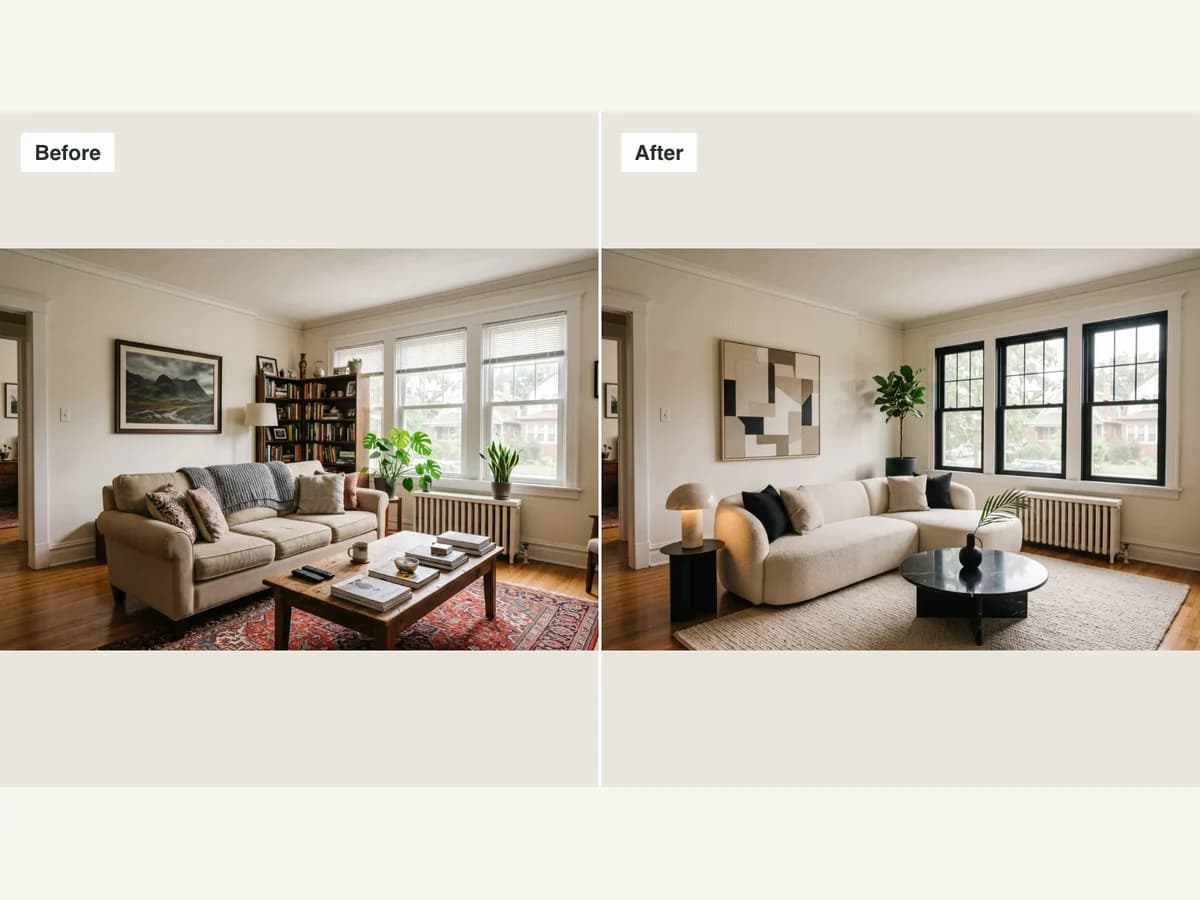
Put before and after photos side by side
Give both pictures equal space in a simple comparison. A consistent camera angle helps viewers see what changed. Show each photo in full or choose to crop and fill its panel; the tool does not straighten or align the photos for you.
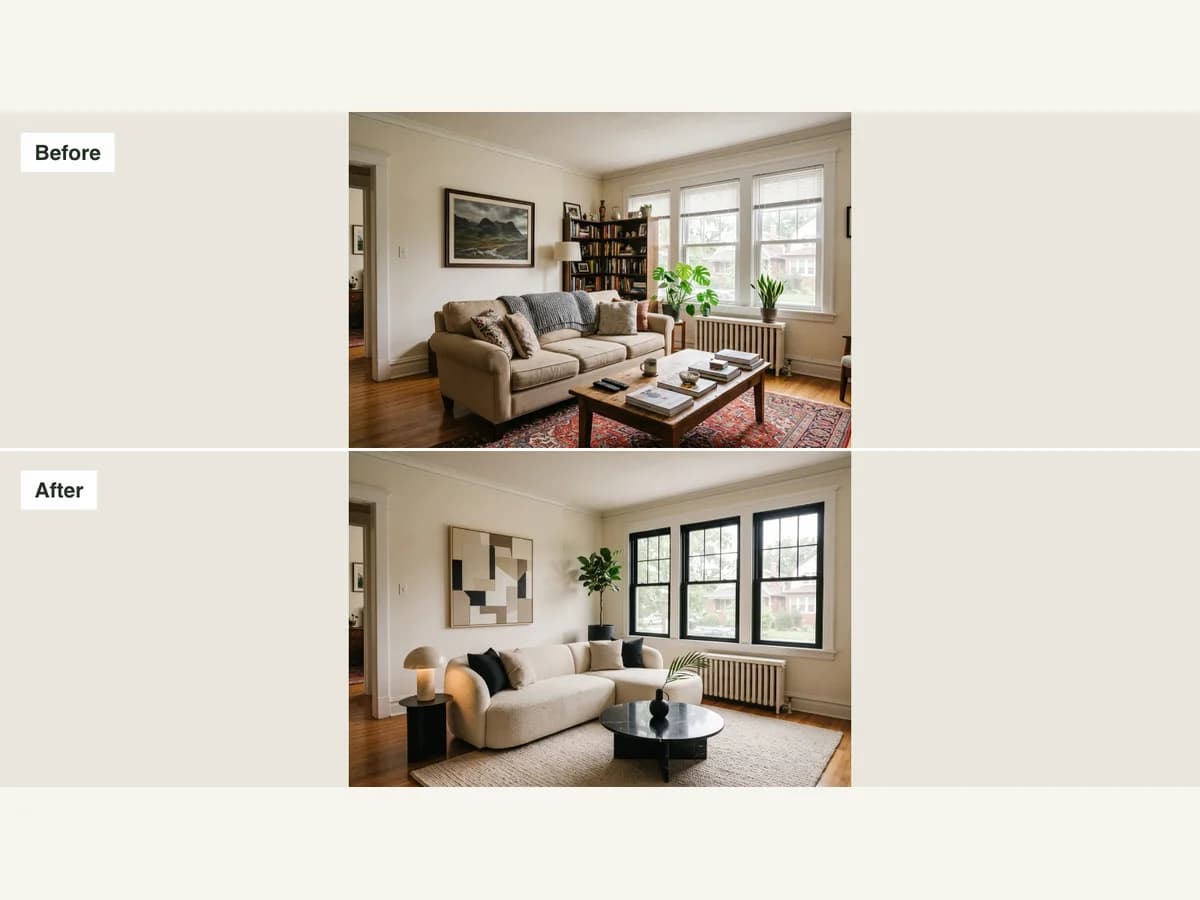
Choose a before and after template
Use a stacked layout when a vertical comparison reads better, or choose square output for a compact post. These templates arrange the two photos you already have; they do not create a finished renovation image.
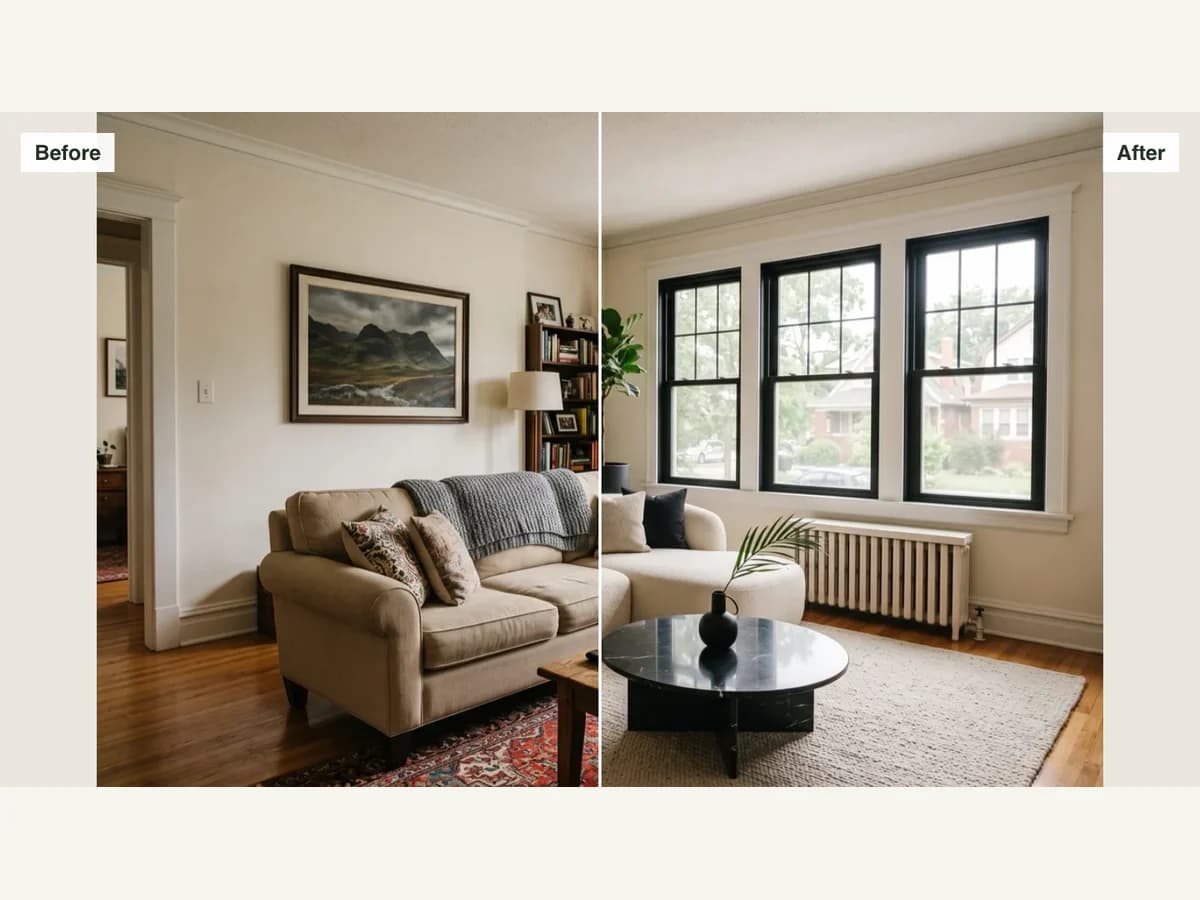
Compare before and after images in one frame
The split template overlays both photos and lets you move the divider. The downloaded file keeps the split position as a still image. It does not export an interactive website slider or a video.
How to use it
- 1
Add your two pictures
Select a before photo and an after photo in PNG, JPEG or WebP format. You can also try the clearly labeled room sample before choosing your files.
- 2
Pick the layout and labels
Choose a before and after template, set wide or square output and choose how the photos fit. Rename or hide the Before and After labels; move the divider in the split layout.
- 3
Download your comparison
Save the combined PNG without an added watermark. Your original files stay unchanged. Photos selected from your device are processed in this browser tab.
Your questions, answered
How do I make a before and after photo?
Add the two photos, choose a layout and check the preview. Add optional labels, then download the combined PNG. For an easier comparison, use photos taken from the same camera position.
Is there a reusable before and after template?
Yes. The side-by-side, stacked and split layouts are reusable before and after templates. Select wide or square output, add your own pictures and change the labels for each comparison.
Can I compare before and after pictures without signing up?
Yes. Uploading, previewing and downloading the comparison are free and need no account or credits. There is no added watermark on the exported PNG.
What is the difference between before after images and AI-generated images?
This tool combines two existing pictures. It does not remove furniture, redesign a room or generate an after photo. Use a separate design or staging tool if you need to create a new room concept first.
What file types and sizes are supported?
Use PNG, JPEG or WebP files up to 15 MB and 40 megapixels each. HEIC, SVG and animated exports are not supported. Output is a still PNG at 1600 × 900 pixels or 1600 × 1600 pixels.
Why do my before and after photos look cropped?
The default Show entire photo setting preserves each full image, with empty space where the proportions differ. Fill and crop centers and crops each image to fill its panel. Preview and download always use the same setting. Split deliberately reveals only one side of each image.
Do my photos get uploaded or saved?
Photos selected from your device are decoded and combined in your browser. This tool does not send those image files to a server or save them to your account. Clearing the tool or refreshing the page removes them from the tool’s working state.
Can I download an interactive slider or GIF?
No. The split control changes the still comparison you export as a PNG. Interactive slider embeds, GIFs and video exports are not included.
Create a room concept or try another free tool
AI Room Design
Upload a photo, get it back redesigned
Exterior Renovator
Test a new facade direction from your photo
AI Interior Design
One photo, one room, restyled
Replace Furniture
Change one selected piece, keep the room
Rug Size Calculator
Compare rug sizes with your room and furniture measurements.
Interior Design Style Quiz
Find your style mix from room, color and material preferences.
Virtual Staging
Furnish an empty listing photo
AI Landscape Design
Whole-property curb appeal
AI Garden Design
Planting beds for your zone
AI Backyard Design
Privacy around the patio you have
Hardiness Zone Finder
Your USDA zone from your ZIP