Can AI Help You Preview Wall Paint Colors?
Use AI and paint visualizers to narrow wall-color choices. Learn what a screen preview can show and how physical samples help you confirm the final paint.
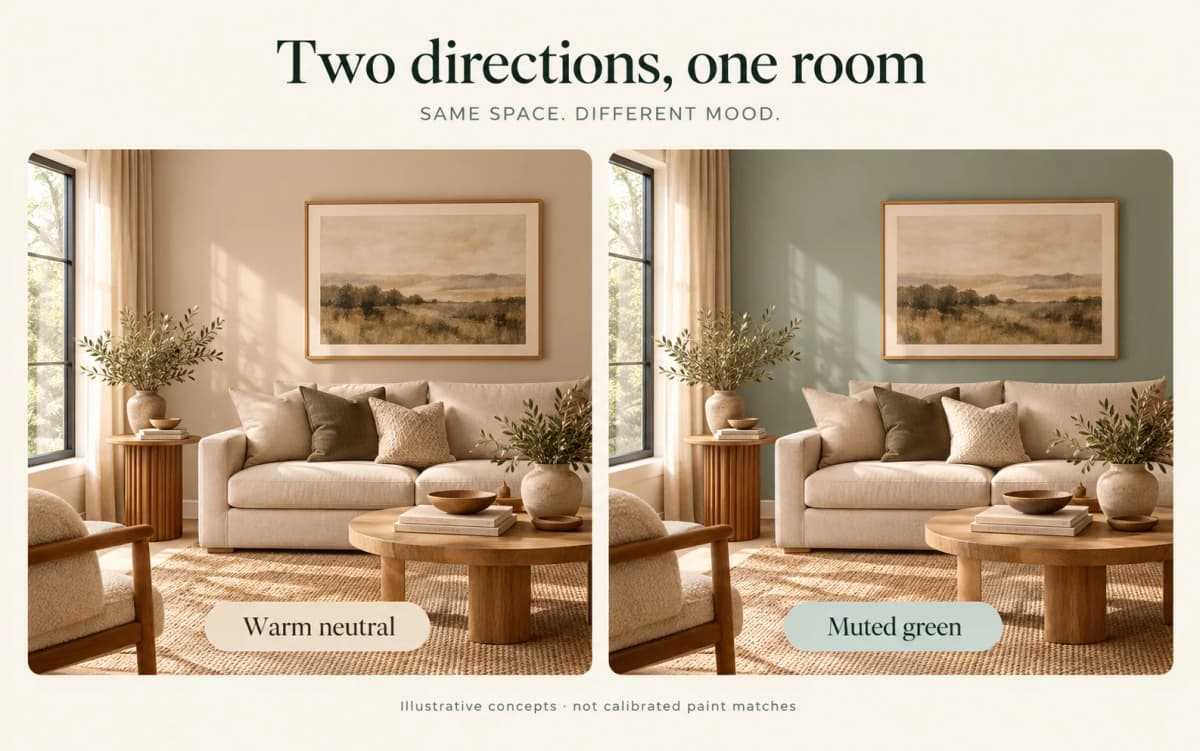
AI-generated room concepts showing two broad color directions. They are not product-tool results, calibrated paint matches or manufacturer colors.
TL;DR
AI can help you compare broad wall-color directions, while a paint brand's visualizer can apply named colors to a photo. Neither screen result confirms the final wall color, so finish with physical samples in the actual room and light.
Direct answer: Use AI to narrow a mood such as warm neutral versus muted green, not to identify a dependable paint code from pixels. When a named product matters, switch to the paint brand's current visualizer, then verify the exact brand, color, finish and sample on the wall.
A useful preview reduces a long color list to two or three candidates. It does not replace the final physical check: the linked Sherwin-Williams guidance explicitly warns that actual color can differ from its on-screen representation and tells users to confirm with a physical chip, card or painted sample.
Choose two color directions rather than a final code
Begin with two clearly different color families, not twenty nearly identical chips. The first decision is whether the room should feel warmer, cooler, lighter, darker or more saturated.
Write a short brief for each direction. For example: "warm light neutral with low contrast" and "muted green that works with the existing wood floor." Keep the room type and desired mood specific, but avoid asking a general AI tool for an exact manufacturer code. A photographed wall does not contain reliable colorimetric data, and the generated image can alter lighting along with paint.
Spaceora's AI Interior Design tool can help explore an overall color direction in a room concept. It is not an exact paint-matching or professional color-calibration tool. Current Spaceora pricing says new-account signup provides ten shared starter credits, enough for one ordinary generation; do not plan on an older or unlimited free allowance.
Keep the photo and other room choices consistent
Change one intended variable at a time so the comparison remains meaningful. Use the same room photo, crop, furniture direction and prompt structure for both color families.
Photograph the room in even daylight without a strong phone filter. Include the walls you plan to paint and some fixed references, such as flooring and trim. Avoid a wide-angle view that makes one wall tiny. If one photo makes the room look unusually warm or cool, take a second reference photo rather than treating the first as definitive.
When reviewing two AI concepts, first check whether windows, wall openings, trim and flooring stayed consistent. If the tool also changed furniture, lighting or materials, do not attribute the entire difference to wall color. Keep only the useful direction and move to a more controlled brand visualizer or physical sample.
Use a brand visualizer when a named paint matters
Move to the selected manufacturer's visualizer when you need to compare colors from its catalog. That creates a clearer bridge from a screen idea to products you can sample.
Sherwin-Williams' current Color Visualizer allows users to select a scene or add a photo and apply colors. Its page warns that actual color may vary from what appears on screen and directs users to confirm with a physical color chip, card or painted sample. Behr's current visualizer likewise offers an upload-your-own-photo flow for trying Behr colors.
Upload the same room photo used for the concept. Apply two or three named candidates to the same wall area, and record the exact displayed name and identifier. Do not use a competitor's example image as evidence that Spaceora performs precise paint replacement; the tools have different purposes.
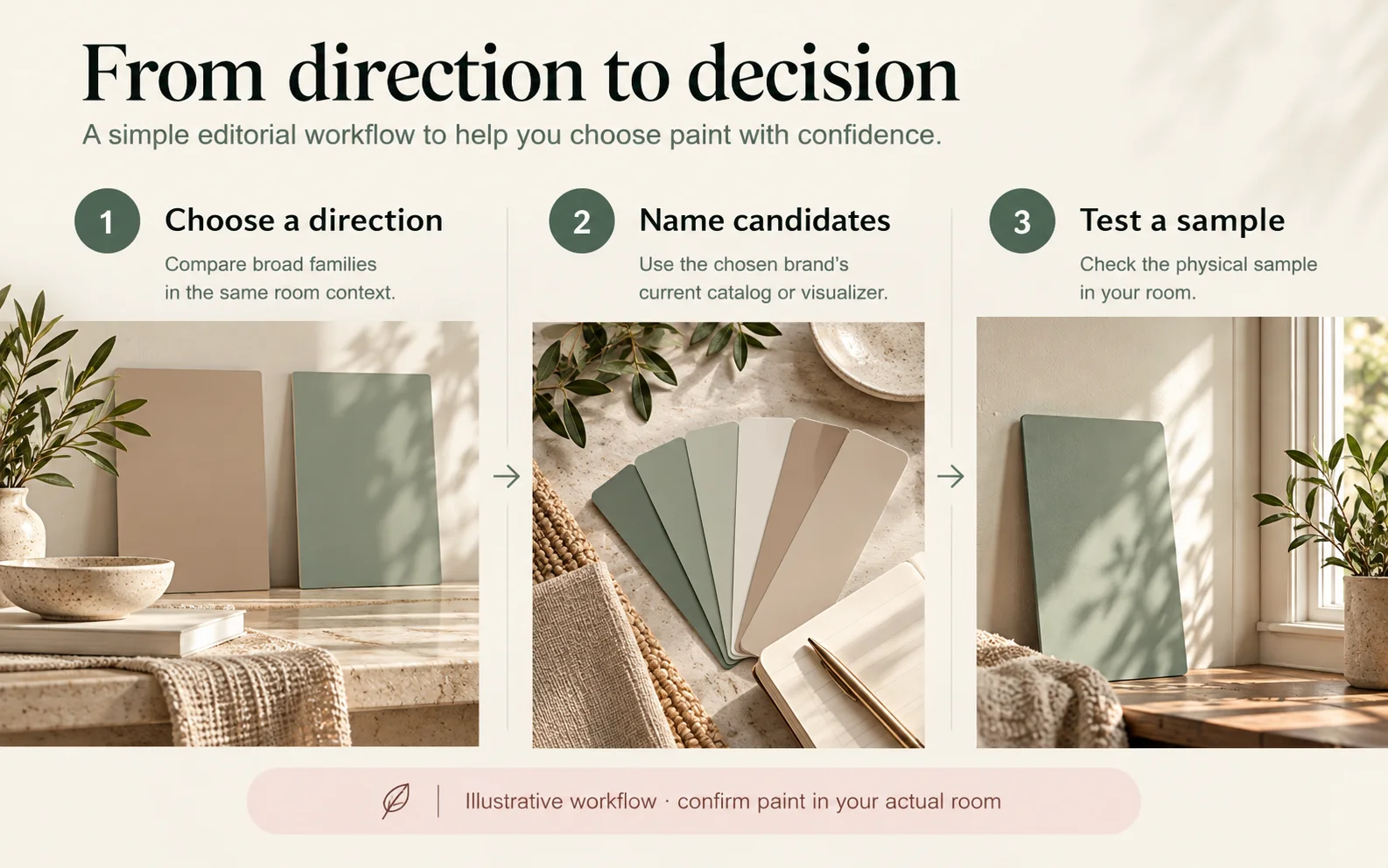
AI-generated editorial workflow illustration, not a software screenshot or color-accuracy test. Use the linked manufacturer tools for named candidates, then confirm with a physical sample.
Read the preview as a screen image
Judge relative direction on screen, not a guaranteed paint outcome. A preview can answer "Which family relates better to the floor?" more reliably than "Will this exact code look like this at 7 p.m.?"
The preview remains an on-screen representation of a photograph, not a sample of paint on your wall. Sherwin-Williams therefore tells users to confirm color choices with a physical chip, card or painted sample before purchase. Keep that warning attached to every comparison, even when the preview looks convincing.
Compare candidates on the same device. Look for relationships: Does one direction work better with the trim or flooring? Does a darker direction change the balance of the room? Write those observations without treating the pixels as a physical swatch. Avoid sampling a code from a generated image with an eyedropper; it would identify a screen value, not verify a manufacturer's paint specification.
Check physical samples in the actual room
A physical painted sample in the intended room is the final color test. Obtain the manufacturer's current sample format or paint a movable board following its instructions.
Place a large sample on the intended wall and compare it beside trim, flooring and major furniture. Observe it during the daylight and lamp conditions in which you normally use the room. Move a sample board to more than one wall rather than making the decision from a single spot.
Record the time, light source and what you observe. Use that record to eliminate candidates that do not work in the room's normal conditions. Judge the physical sample itself rather than editing a photo until it resembles the preview.
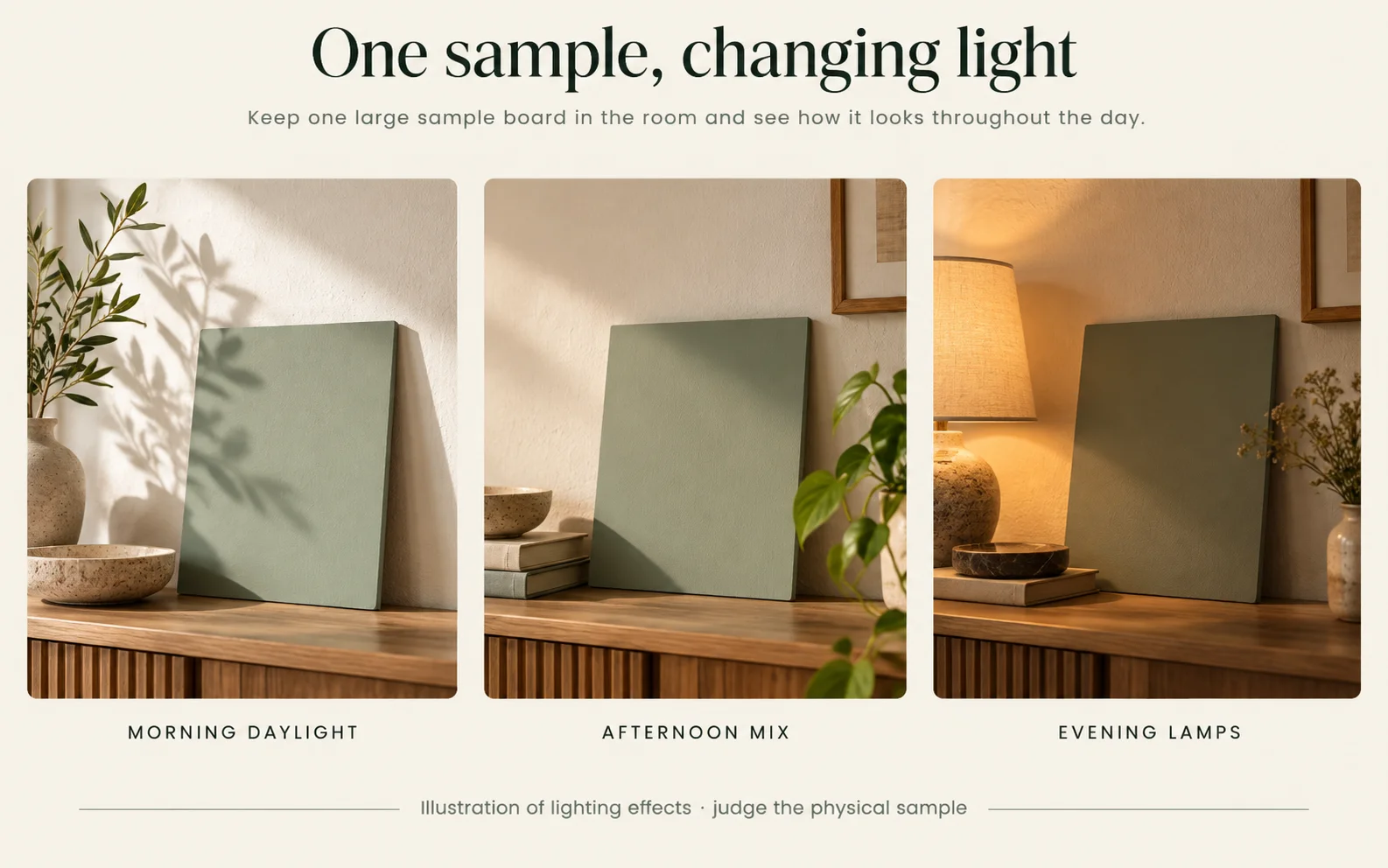
AI-generated illustration of lighting effects on a sample board, not a physical test or calibrated color comparison. Judge your actual painted sample in the room.
Confirm the paint specification before buying
Buy from a written specification, not from the preview image. Confirm manufacturer, color name, color identifier, product line, sheen or finish, base, quantity and the surface-preparation instructions for your room.
Recheck the current product page or store record because names and formulas can be confused across brands. Keep the physical sample and note which wall and lighting conditions you approved. If a contractor is purchasing, send the written specification rather than a screenshot alone.
Use Spaceora when you need to explore the whole room's color direction. Use the paint brand's visualizer and physical sample when the decision has narrowed to a named paint. That division keeps the creative step useful without asking a screen image to provide certainty it cannot deliver.
Frequently asked questions
Can AI identify an exact paint code from a room photo?
Not reliably. Camera processing, lighting and display differences prevent an ordinary photo from proving a physical paint code. Treat a suggested code as a lead to verify, not an identification.
Will the on-screen color match the wall?
Do not assume it will. Even paint-brand visualizers warn about screen variation. Confirm with the manufacturer's current physical chip, card or painted sample in your room.
When is a general room redesign tool useful?
It is useful early, when comparing broad directions and how wall color relates to furniture, flooring and mood. Switch to a brand visualizer and physical samples for the purchase decision.