How to Decorate a Living Room With AI
Use AI to compare living-room decor ideas while keeping your seating, TV, windows, and walkways in view. Includes prompts and a practical review checklist.
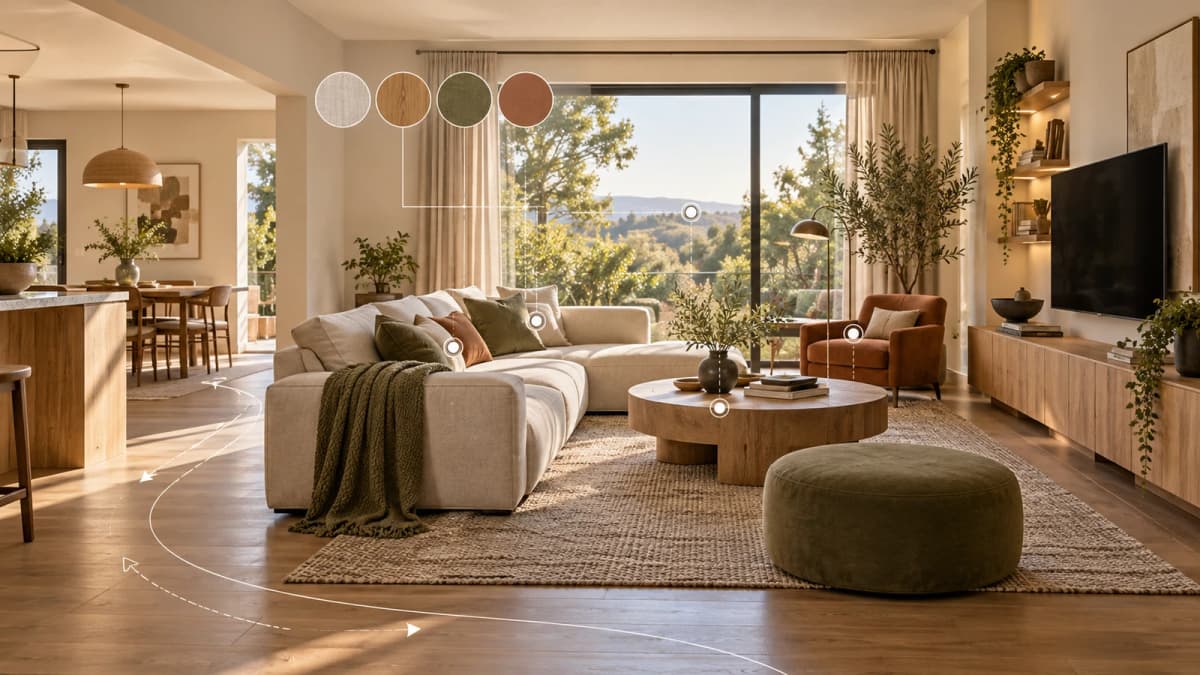
Cover: editorial illustration created October 27, 2026, not a Spaceora test result or a verified plan.
TL;DR
Photograph the living room from a corner or doorway so the seating group, main focal point, windows, and floor are visible. Decide what must stay, name how the room is used, and compare two directions that change only a few things at a time. Treat each AI image as a concept: turn the useful ideas into a written change list, then confirm measurements, materials, and real products separately.
Direct answer: To decorate a living room with AI, start with the room you actually have rather than an empty inspiration image. Show the sofa, TV or fireplace, windows, and walking routes; tell the tool which pieces must remain; then ask for one style or practical goal. Compare the output with the original before you use it to guide purchases.
A living room usually has more jobs than a bedroom. It may need to support conversation, television, play, work, and a route to another part of the home. A useful AI brief identifies those jobs before it asks for a look.
What should you decide before uploading the photo?
Start with the room's daily use. A design direction that looks calm in a picture can still fail if it blocks the television, removes a reading light, or narrows the route to the kitchen.
Use this living-room checklist:
| Check | Record before generating | What to inspect in the result |
|---|---|---|
| Seating | Sofa and chairs to keep; number of regular seats | Whether seating still faces the right focal point and conversation area |
| TV or fireplace | Which feature is primary; required viewing or access area | Whether the output hides, moves, enlarges, or invents the feature |
| Walkways | Routes between doors, stairs, kitchen, and seating | Whether tables, chairs, or a rug obstruct the route |
| Window light | Window positions; strongest daylight direction; glare problem | Whether the concept changes windows or places screens and seating poorly |
| Open-plan zones | Living, dining, work, or play areas sharing the view | Whether each zone remains legible without imaginary walls or extra space |
| Existing pieces | Furniture, art, lamps, plants, or storage worth keeping | Whether those pieces remain recognizable and usable |
An independent DecorAI living-room guide likewise recommends showing the seating group, focal point, floor line, and at least one window. That advice is useful for framing the input, but it does not prove that any image generator will preserve those features.
How do you take a useful living-room photo?
Stand in a doorway or corner and hold the camera level. Step back far enough to include the full seating group and visible floor, but avoid an ultra-wide setting that bends the walls. If one image cannot show an open-plan room clearly, photograph each connected zone and plan them separately.
Remove private information from screens, papers, and family photographs. You should have the right to upload the image.
A good input helps you notice changes. It does not turn the output into a measured room plan.
How do you write a living-room prompt?
A useful prompt contains four parts:
- Purpose: how the room needs to work.
- Keep list: furniture and fixed features that should remain.
- Direction: one style, atmosphere, or color goal.
- Allowed changes: the small set of things the tool may explore.
Prompt for a family living room
Create a warm, practical living-room concept for two adults and two children. Keep the existing sofa, TV wall, windows, doorway, and main walking route. Explore washable neutral textiles, closed toy storage, a larger rug, and softer evening lighting. Do not add a fireplace or change the room structure.
This prompt prioritizes storage, maintenance, and circulation. The generated furniture is still illustrative, so measure storage and rug options before buying.
Prompt for a living room used for hosting
Create a relaxed living-room concept for conversation and occasional guests. Keep the sofa, fireplace, windows, and access to the dining area. Explore two movable chairs, one low coffee table, layered lamps, and a warmer color palette. Keep the doorway and path to the dining area clear.
This version makes the social goal explicit. It still cannot verify that a depicted chair fits the available floor area.
How should you compare two AI directions?
Change one main variable at a time. For example, keep the original photo and must-keep list unchanged, then compare a light Scandinavian direction with a warmer Modern direction. If you change style, layout, furniture count, and color together, you will not know which idea made one image more useful.
Open Spaceora's AI interior design tool, choose Living room, select the first direction, and add the short brief. Repeat with the second direction using the same source photo and constraints. Check the current account and pricing page before relying on a particular allowance. New-account credits and paid plans can change, and the tool does not guarantee that requested furniture or fixed features will remain unchanged.
No new living-room after image was generated for this article. Existing Spaceora screenshots may illustrate the interface, but they must not be captioned as a D1 living-room result or a new test.
How do you check whether a concept is usable?
Compare the full output with the original, not just the most attractive corner.
- Count doors, windows, and major pieces of furniture.
- Trace the route from each doorway to the seating area and adjoining rooms.
- Check whether the TV, fireplace, radiator, vent, or outlet moved.
- Look at chair and table scale against known objects.
- Note where daylight and screen glare would fall.
- Reject any idea that depends on extra floor area the room does not have.
If scale matters, measure the room and the furniture separately. Spaceora creates photo-based concepts; it does not provide dimensional proof.
How do you turn an AI image into a change list?
Do not shop from the image immediately. Translate it into decisions you can verify.
| Concept idea | Turn it into a checkable action |
|---|---|
| “Larger neutral rug” | Measure the seating zone; compare standard sizes; tape the outline on the floor |
| “Softer evening light” | Count existing outlets; identify task, ambient, and accent lighting needs |
| “Warm wood storage” | Measure wall width, depth, door clearance, and cable access |
| “Two occasional chairs” | Mark both chair footprints and the route around them |
| “Muted green accents” | Test fabric or paint samples in morning and evening light |
For rug planning, the rug size calculator uses dimensions you enter to compare standard sizes in a scaled rectangular layout. It does not measure the room from a photo and does not account for irregular walls, door swings, or rug thickness.
A useful final list might be:
- Keep the sofa and TV position.
- Test an 8 × 10 ft rug outline around the seating group.
- Add one floor lamp near the reading chair, subject to outlet access.
- Compare two washable curtain fabrics in daylight.
- Measure the storage wall before selecting a cabinet.
That list is more actionable than “make the room look Scandinavian” because each item can be checked in the real space.
What if the AI changes something that must stay?
Return to the original photo and narrow the request. Name the changed feature and reduce the number of allowed changes. If a sofa must remain, describe its location and ask the tool to explore textiles, lighting, wall color, and decor around it rather than redesigning the full room.
A clearer request can make the next result easier to assess, but it is not a preservation guarantee. If the workflow repeatedly changes the same critical feature, keep the useful mood or material idea and discard the implied layout.
Choose one low-risk change first
Select the direction that best supports the way the living room is used. Then test one reversible idea, such as a rug outline, lamp position, curtain sample, or cushion color, before ordering larger furniture.
When you are ready to compare two visual directions, try your living-room photo in Spaceora. For the general room-photo process, see How to Use AI to Decorate a Room From a Photo.
Frequently asked questions
Can AI decorate a living room from a photo?
Yes. A photo-based tool can generate a visual decor direction from an existing living room. The result does not prove fit, dimensions, structural feasibility, or exact product availability.
Should the living room be empty?
No. A furnished photo is useful when you want to decide what to keep and what to change. An empty-room workflow is more suitable for virtual staging.
Can AI keep my sofa and TV in the same place?
You can state that requirement and compare the output with the original, but it is not guaranteed. Treat any changed placement as an idea to reject unless real measurements support it.
How many concepts should I compare?
Start with two directions using the same photo and keep list. A small comparison is easier to evaluate than many unrelated images.
Can AI choose the right rug size?
An image can suggest proportion, but it cannot confirm size from the photo. Use actual room and seating-zone measurements with a rug planning tool, then mark the outline in the room.
Sources and illustration note
- DecorAI living-room photo guidance, accessed October 27, 2026.
The cover is an editorial illustration created October 27, 2026. It is not a Spaceora test result, a measured plan, or evidence of furniture preservation.