How to Review a Virtually Staged Photo Before Publishing
Review a virtually staged photo against the original. Check fixed features, furniture, image defects and the disclosure rules for the intended listing platform.
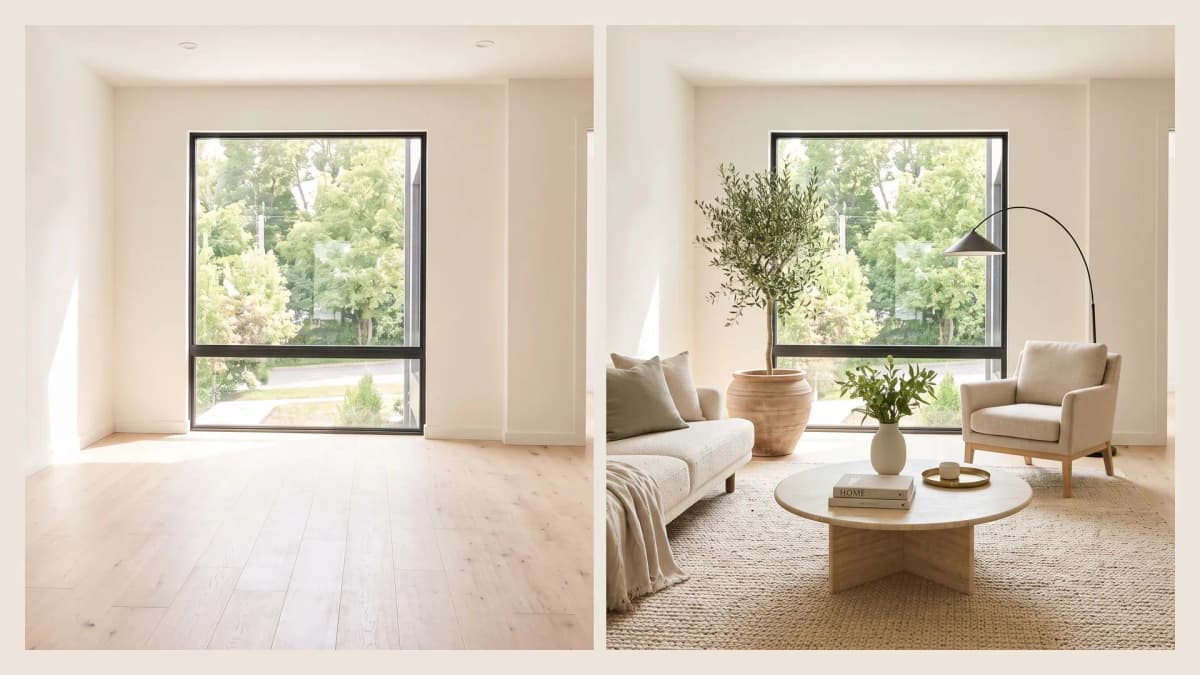
Authorized Spaceora editorial illustration. It demonstrates side-by-side review and is not a listing, customer result or platform-approved file format.
TL;DR
Review a virtually staged photo beside the uncropped original. Check permanent features, visible condition, furniture scale and image defects, then verify the exact label, caption, original-photo and primary-image rules of the MLS or platform where it will appear.
Direct answer: A realistic-looking image is not automatically publication-ready. Use a documented accept, revise or reject review, retain the original, and send both files plus the intended use to the broker or platform reviewer who owns the final decision.
This guide is a visual quality and handoff process, not a universal MLS or legal opinion. The examples below are editorial illustrations. Rules cited for MLS Now and SmartMLS differ and should not be generalized to another service.
Keep the original beside the proposed listing image
Start with the original at the same crop, orientation and resolution as the staged version. Side-by-side review is faster and safer than relying on memory. Save a read-only copy of the original before any staging or export step.
- Pair the original and staged files with a shared identifier.
- Match the crop and zoom level on screen.
- Inspect fixed features before movable furniture.
- Record each discrepancy and its location.
- Decide accept, revise or reject.
- Check the intended platform's current rules before delivery.
Do not crop the staged image to hide a failed edge or changed fixture. That makes the pair harder to compare and can conceal information. If the staging workflow changed the frame, request a new export that preserves the original view.
Check permanent features and visible condition first
Reject or revise a file when staging changes a fixed feature, conceals a defect or invents a property improvement. Check doors, windows, wall openings, flooring seams, trim, outlets, switches, vents, fireplaces and built-ins in a consistent order.
Move across the image from left to right. Compare the shape, count and position of every window and door. Look for straight lines that bend behind generated furniture, new wall openings, missing floor damage or an outlet that moves. Inspect the exterior view through glass as well as reflections in mirrors and shiny surfaces.
MLS Now's Section 3 rule, updated September 23, 2026, effective August 3, 2026 and rechecked October 27, 2026, permits certain edits with disclosure but prohibits changes to permanent or structural features, views and surroundings, defects, nonexistent upgrades and other listed elements. Those are MLS Now requirements, not proof of another MLS's policy.
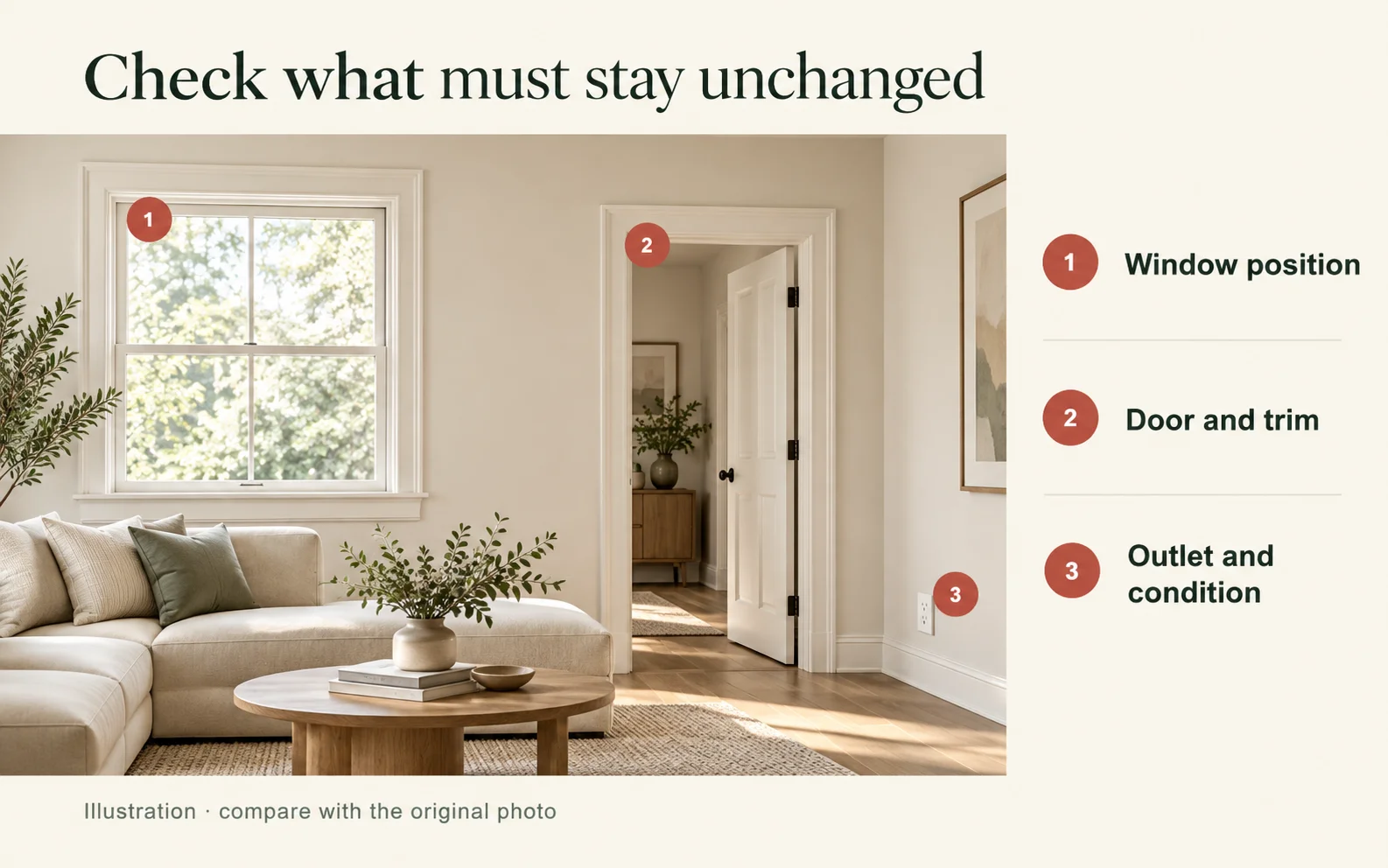
AI-generated editorial room illustration. Numbered features show where to compare the original; this is not a listing photo or a tested staging result.
Inspect furniture, edges, reflections and scale
Once the property itself matches, inspect whether the movable staging is visually coherent. Furniture should rest on the floor, respect walls and door swings, and have a plausible scale relative to known objects.
Zoom to 100% and look at sofa legs, chair backs, plant leaves, rugs and objects near windows. Common failure signals include floating feet, duplicated legs, softened floor seams, furniture crossing a wall, impossible shadows and reflections that omit or add objects. A rug should follow the floor plane rather than climb a wall or cover a hearth.
Scale deserves a separate check. A generated bed or sectional can look attractive while implying circulation that the room does not have. If dimensions matter, use room measurements and product dimensions; do not infer fit from a generated image. Return the image for revision when a misleading object cannot be corrected without changing the room.
Record an accept, revise or reject decision
Use one written record for each file so the next person knows what was checked and why. "Looks good" is not a useful audit trail. Copy the template below into the job record.
| Check | Evidence or note | Decision |
|---|---|---|
| Original retained at matching crop | File names and location | Accept / Revise / Reject |
| Fixed features and visible condition | Windows, doors, floor, outlets, defects | Accept / Revise / Reject |
| Furniture, edges, reflections and scale | List exact issue locations | Accept / Revise / Reject |
| Disclosure and original-photo rule | Name the MLS/platform and rule date | Accept / Revise / Reject |
| Rights and final reviewer | Owner/photographer authorization; reviewer | Accept / Revise / Reject |
An accept means the internal visual checks passed, not that a platform has approved the file. Revise should name the smallest correctable problem. Reject is appropriate when the image misrepresents a permanent feature or the original cannot be reliably paired.
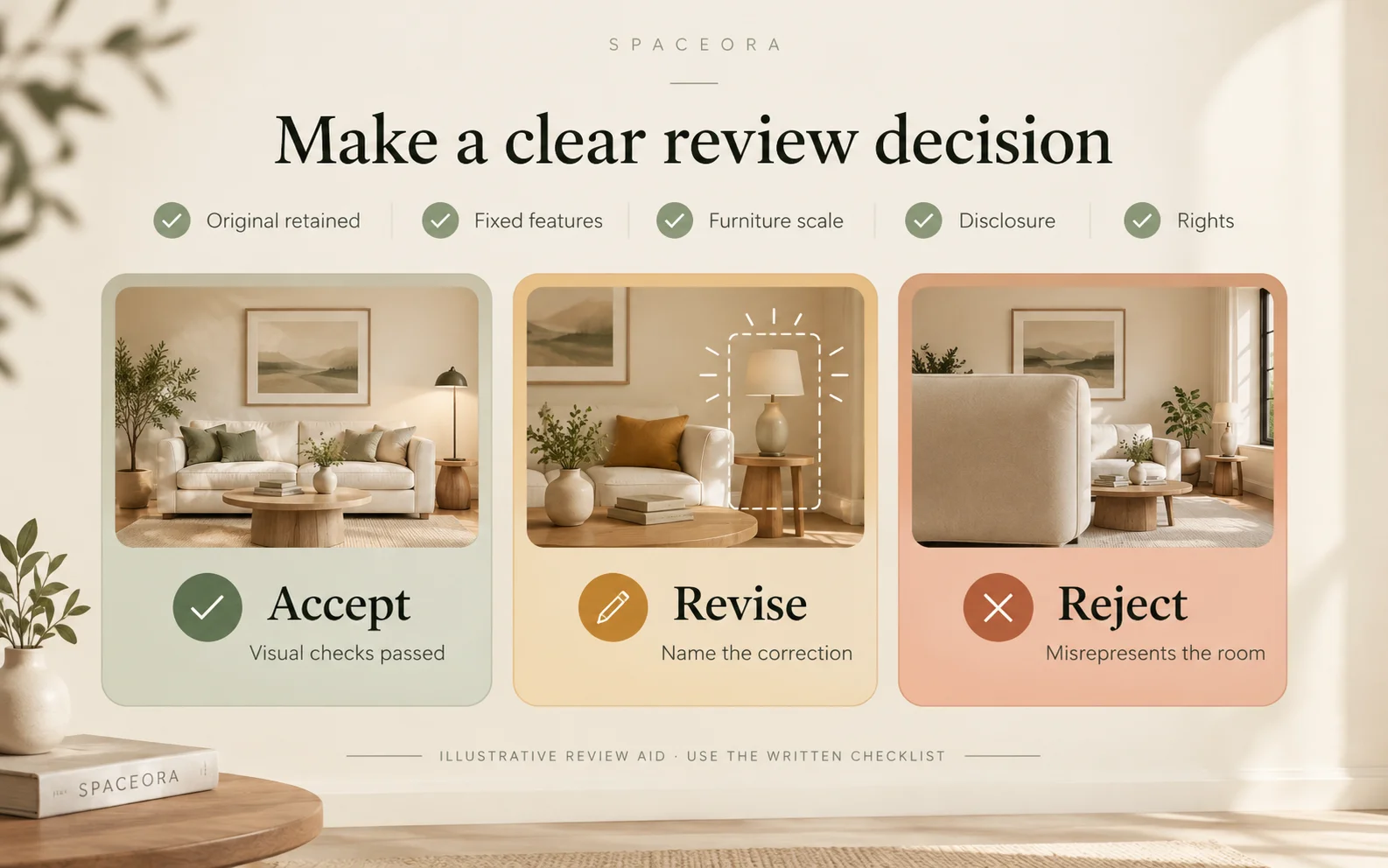
AI-generated editorial decision guide, not examples of actual review verdicts. Copy the text table above for the editable job record; platform approval remains separate.
Check the rules for the actual MLS or platform
Read the current rule for the exact publication destination; disclosure practices are not interchangeable. Save the rule URL and review date with the file package.
MLS Now currently requires a readable on-image label for staged, altered or rendered images and repeats that status in the caption. Its primary image generally must show the current exterior unaltered, with an exception described for new-construction renderings. It also requires originals to be retained and provided on request.
SmartMLS's rule article, updated February 24, 2023 and rechecked October 27, 2026, describes virtual staging as adding furniture or interior design elements. It says staged photos need a stamp or watermark. For virtually altered images, it requires an accurate as-is image to accompany the altered one, with the as-is image immediately before it; it says a caption alone is insufficient because captions may not appear in IDX feeds. These are SmartMLS requirements, not a universal MLS rule.
These examples show why a generic "virtually staged" caption cannot be assumed to satisfy every destination. Ask the responsible broker or platform contact when the rule, account configuration or intended syndication is unclear.
Prepare the files for the responsible final review
Deliver the original, staged image, review record and rule evidence together. Include the intended listing, platform, image order, proposed label/caption, rights source and the person responsible for approval.
Keep an uncompressed review copy when possible. Confirm that labels remain readable after the platform resizes the image and that metadata or captions required by the destination are actually transmitted. Do not describe a comparison collage as the original unless the rule explicitly accepts that format.
You can create a visual concept with Spaceora Virtual Staging, then apply this review before any listing use. For budgeting, see the guide to virtual staging costs versus traditional staging.
The final question is not "Does this look real?" It is "Does the staged file remain faithful to the property, and does this exact delivery package meet the destination's current rules?" Escalate that decision to the responsible broker or platform reviewer.
Frequently asked questions
Does realistic furniture make a listing photo ready?
No. The room can look convincing while a window, defect, reflection or scale is wrong. Compare the original, document the review and check the destination's rules.
Can one disclosure label satisfy every MLS?
Do not assume so. MLS Now and SmartMLS already express different image-order and disclosure details. Verify the exact MLS or platform and the current version of its rule.
Can a comparison collage replace the required original photo?
Only if the destination explicitly accepts it. A collage helps internal review, but a rule may require the accurate as-is image as a separate file and in a specific order.