How to Make a Before-and-After Comparison of AI Room Designs
Make an honest before-and-after comparison of an AI room design. Match the framing, choose a layout, label the concept and export a static comparison PNG.
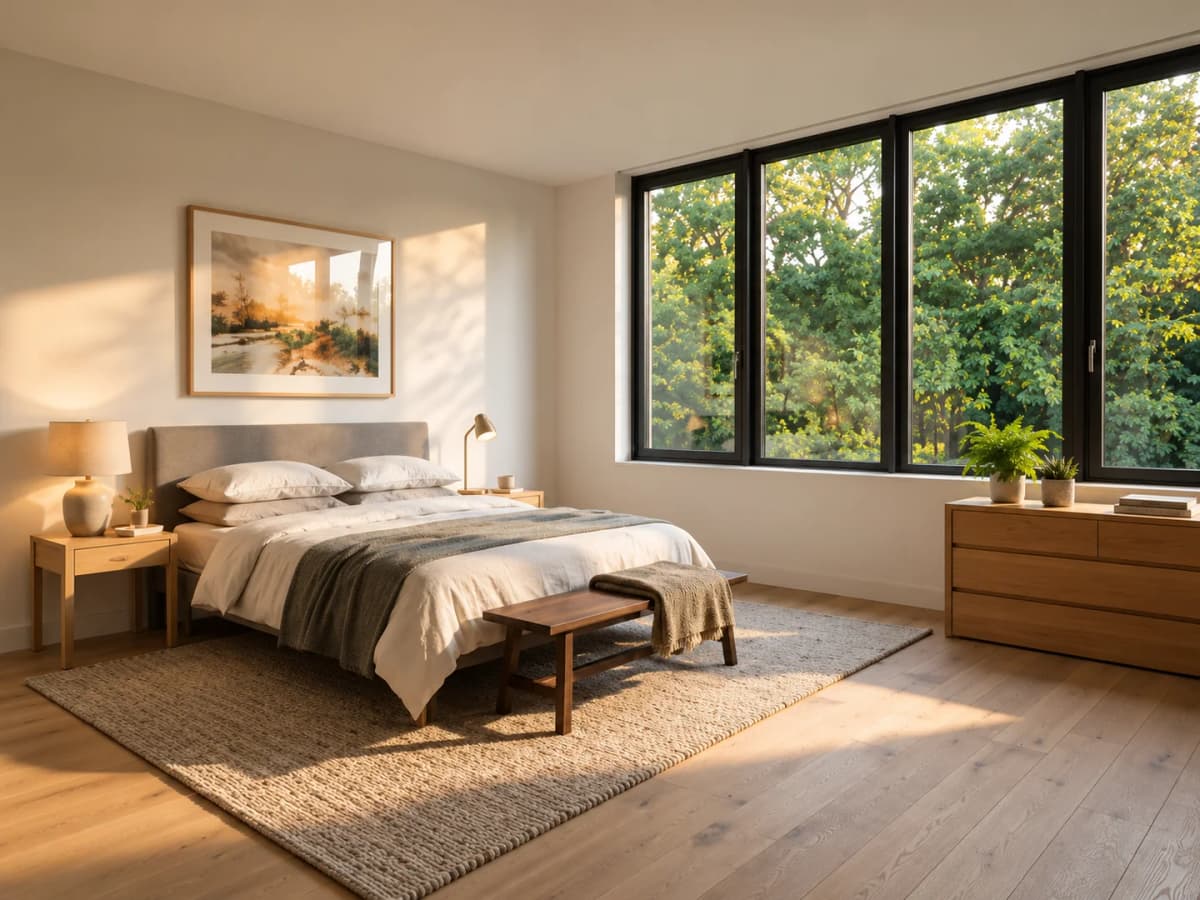
Historical input from the October 25, 2026 workflow. This is the original, not a new generation or a claim that the pictured room was renovated.
TL;DR
Choose the original room photo and one clearly labeled AI concept, then compare recognizable landmarks before arranging them. Use the free photo maker to choose a layout and fitting mode, export a static PNG, and check the downloaded file for cropping and misleading labels.
Direct answer: A before and after AI room design comparison is a presentation of two existing images, not proof that a room was renovated. Spaceora's Before and After Photo Maker combines your chosen pictures into a labeled PNG. It does not generate an after image or automatically align the room's geometry.
We tested the maker on October 27, 2026, using the authorized bedroom input and Modern concept from the October 25 room-design workflow. We created no new AI room result. The new artifact is the comparison file itself.
1. Choose and label the original and the concept
Keep a genuine source photograph and a single concept together before opening the maker. Comparing two generated images can help choose a direction, but neither should be labeled the untouched room.
Save copies with clear names, such as bedroom-original-2026-10-25 and bedroom-modern-concept-2026-10-25. Retain the original files as evidence rather than saving over them. Use photographs you have permission to process and share, and inspect reflections, documents and personal pictures before distributing the comparison.
Our two historical images were both 1440×1080. Equal dimensions made them convenient to arrange, but did not establish that the camera view, furniture or geometry had been preserved. The original room-photo tutorial documents the earlier generation and its limits.
2. Match the framing before choosing a layout
Check fixed landmarks before interpreting visual changes. Use window corners, wall junctions and the floor boundary, rather than movable decor, to judge whether the two views are comparable.
If one image is rotated, zoomed or taken from another position, a split can make that difference look like a design error. Conversely, attractive framing can hide a shifted doorway. The maker does not correct perspective or register those landmarks automatically.
Return to the original generation files when an earlier crop has removed useful context. If the concept changed the room, keep that change visible and record it. Do not stretch or crop the pictures until the windows appear to match and then describe the result as accurate preservation.
3. Choose a layout for the comparison task
Pick the layout that makes your question easiest to inspect. In our checked interface, Side by side, Stacked and Split were available; we switched through all three and completed a side-by-side export.
| Layout | Useful for | Main caution |
|---|---|---|
| Side by side | Seeing the full original and concept together | Details become smaller when two complete pictures share a wide canvas |
| Stacked | Comparing two complete views arranged vertically | Check whether the chosen output shape leaves each view too short |
| Split | Inspecting a boundary between corresponding views | Misaligned landmarks can exaggerate differences; one portion of each image is hidden |
For our example, side by side kept both complete views available. A split remains a static composition even though its dividing position can be adjusted while preparing it. The exported file does not contain a draggable handle.
4. Decide whether to show the whole photo or crop
Start with Show entire photo when checking whether the concept changed the space. It preserves each picture's proportions inside its panel and leaves empty space where needed.
Fill and crop fills the panel but removes part of the source image. That can be useful for presentation once the full comparison has been checked. Inspect the doorway, floor and edge furniture again; an edge-to-edge layout is not worth hiding the very change you need to discuss.
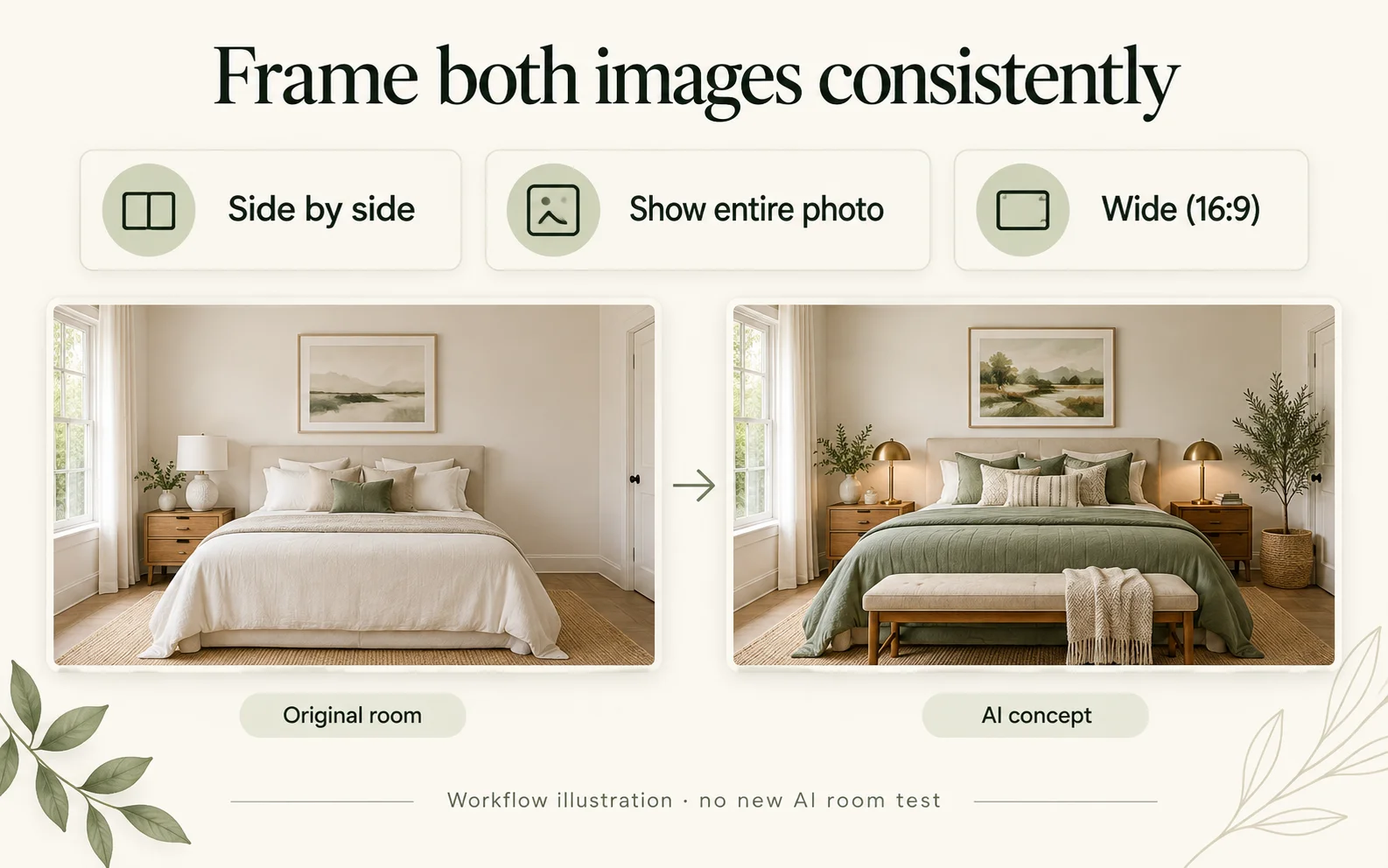
AI-generated workflow illustration of the settings observed October 27, 2026: Side by side, Show entire photo and Wide. The rooms in this teaching graphic are illustrative; the actual historical export appears below.
Our wide export had empty space above and below the pictures. Those margins were expected: two complete 4:3 images were fitted into half-width panels on a 16:9 canvas. They were not a loading failure. Do not confuse a filled panel with a more faithful comparison.
5. Download the PNG and inspect the actual file
Check the exported image, not only the preview. Add labels such as Original room and AI concept, keeping the historical test date in the caption or labels. Avoid Finished renovation unless that is what the second photograph actually documents.
Click Download comparison PNG and open the downloaded file. Our October 27 test produced before-and-after.png, a static 1600×900 PNG, using Wide and Show entire photo. Both labels were visible, the images retained their proportions, and the empty margins matched the preview.
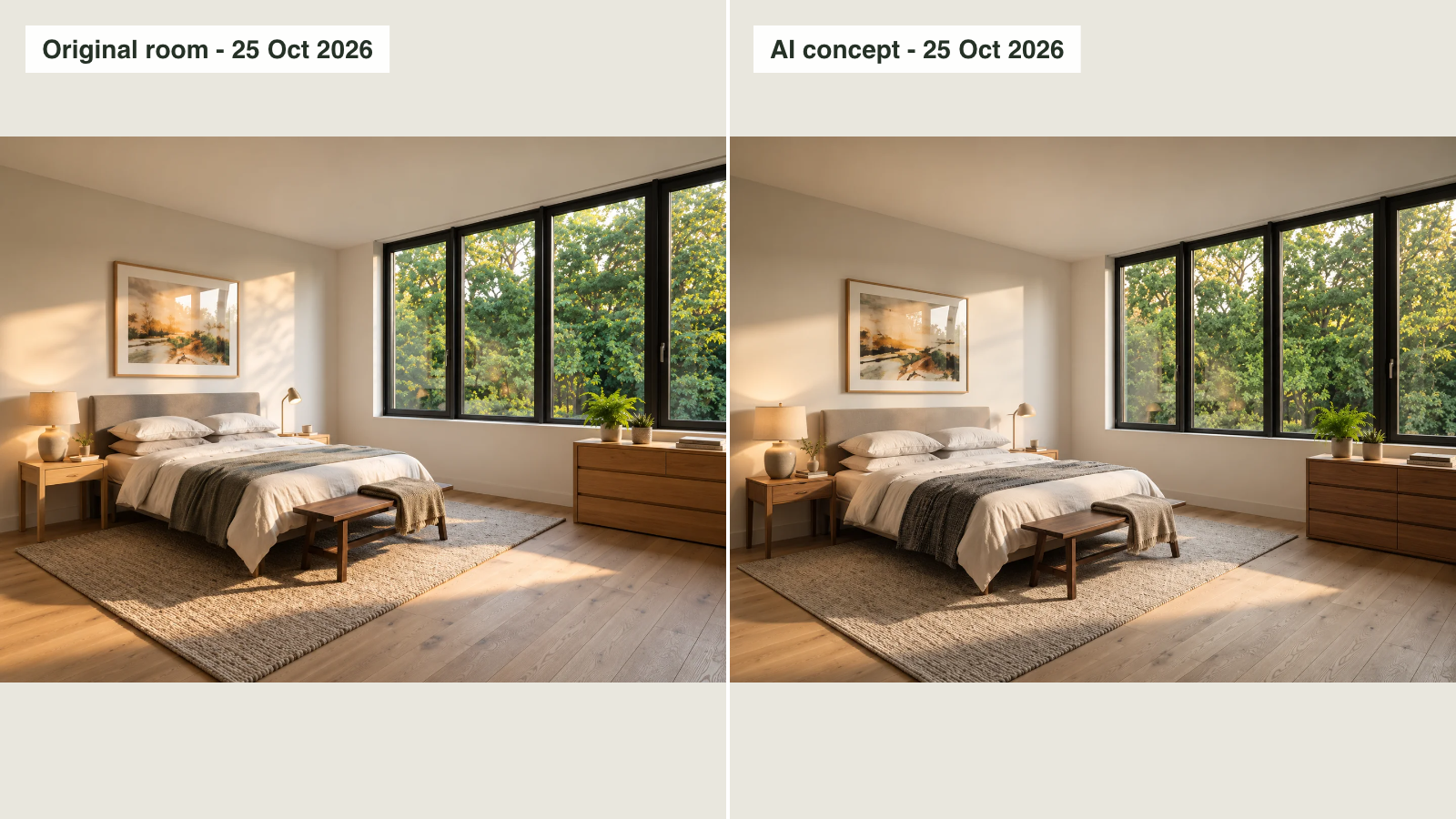
Actual free maker export downloaded October 27, 2026; the two source images are from October 25. This is a static comparison, not a new AI output, interactive slider or completed-room photograph.
The checked maker required no credits for arranging and downloading these existing files. That does not make a separate AI generation service free. A receiving platform can also resize the PNG; reopen the uploaded copy to confirm labels remain readable.
6. Use the comparison to make one room decision
Ask one question that the pictures can answer: which material direction feels calmer, whether the rug dominates, or which changes deserve a physical sample. For choosing directions first, see how to choose an interior design style.
Write three notes: a useful idea, an unintended change and something requiring real-world verification. In the historical bedroom workflow, furniture and decor details changed beyond the request. A neat comparison should expose that limitation rather than suggest exact preservation.
Measure before buying and check actual products separately. Open the photo maker when you already have the two images; keep the full originals alongside the shareable PNG.
Frequently asked questions
Does the maker generate an after image?
No. It combines two pictures you supply. Create or obtain the concept separately, keep permission to use both files, and identify the second image as an AI concept when appropriate.
Can I export an interactive slider or GIF?
The checked download is a static PNG. Adjusting the split position in the maker changes the composition before export; it does not add an interactive slider or animation to the file.
Does matching the image size align the room automatically?
No. Equal pixel dimensions do not establish matching perspective or room geometry. Compare fixed landmarks yourself and retain visible differences instead of treating the maker as an alignment or accuracy tool.